Every screen in Knowhere
A complete reference of the product’s views: what each screen shows and what you can do there. Knowhere has two entry points, the main app (managers and team members) and the kiosk (a separate attendee-facing screen for event day), plus public pages your customers reach with no account at all.
On every screen
Section titled “On every screen”- Ask the Know It All: the round blue button at the bottom right of every page (or ⌘K). Type to search and jump to a meeting or organization, or ask a question in plain English and get an answer with links to the right screen. On a meeting or organization it answers about that record. It can even pre-fill a new or edited meeting for you to confirm.
- Sidebar navigation: a flat list of top-level pages (Overview, Signals, Requests, Meetings, Briefs, Organizations, Availability). There’s no per-event tree in the sidebar; pick a show from the event picker in the top bar instead, and every page follows it. Events and Settings live in the profile menu at the bottom of the sidebar. You see a dot on Overview when something needs you and on Requests when requests are waiting.
- The meeting sheet: meetings open in a slide-over panel from anywhere (schedule, lists, dashboards, chat answers) with detail and editing. Checking people in happens right on the People list in the sheet on the day of the meeting.
Manager screens
Section titled “Manager screens”| Screen | What it shows | What you can do |
|---|---|---|
| Overview | Your day readout, a “needs you” inbox, today’s meetings timeline, show essentials (announcements and logistics), a setup checklist for events still being configured, target coverage, and recent activity, for the picked show or every active show at once | Jump into any meeting or show, add a meeting, work through the inbox, create an event |
| Events | Every event as a list or calendar, with live/upcoming status and booking on/off | Create an event, open or configure any event |
| Meetings | Every meeting across all events, grouped day by day down a date rail, filterable (search, event, person, type, status), auto-scrolled to today | Open, edit, duplicate, or check in a meeting |
| Requests | Every inbound meeting request, tabbed by pending / approved / declined, with requester details, requested times, and alternates, plus Imports to review (forwarded email invites Knowhere couldn’t place in an event) as pending rows | Approve & schedule (opens a pre-filled meeting form), decline with a note, assign or discard imports |
| Organizations | Company-wide directory as a split view: a persistent list panel on the left (org/contact/lead counts) and the selected organization’s record inline on the right | Add or edit organizations, mark leads, open org and contact profiles |
| Briefs | The Briefs reading room across events, with a to-do banner for drafts you own | Filter (needs publishing / targets / my meetings), open and publish Briefs |
| Team (Settings) | Active members, pending invitations, and archived members | Invite members, change roles, manage event assignments and availability, assign accounts, archive |
| Company / Account / Billing (Settings) | Company profile (including an Event Defaults tab: invites, booking, station auto-confirm, kiosk, briefing, schedule hours, per-type meeting durations every new event starts from, and the Executive level for engagement metrics), your personal profile — name, title, phone, WhatsApp, LinkedIn, Slack handle, your email Forwarding Address, and (for email/password accounts) a password reset — and plan & billing | Edit details, set company-wide event defaults, update your profile info, copy your forwarding address, reset your password, manage the subscription and add-ons |

Working inside one show (manager)
Section titled “Working inside one show (manager)”Pick a show in the top bar and every page above narrows to it: Overview, Signals (with Readout, Themes, Follow-ups, Pipeline, Bookings, Engagement, and Financials tabs), Requests, Meetings, Briefs, Organizations, and Availability. There are no separate per-event pages to hop between. Old links to an event’s pages land on the matching page for that show.
| Where | What it shows | What you can do |
|---|---|---|
| Overview | The show header with its dates, a live badge, and a day tracker, then the day readout, needs-you inbox, and today’s meetings | Add meetings, work through the inbox |
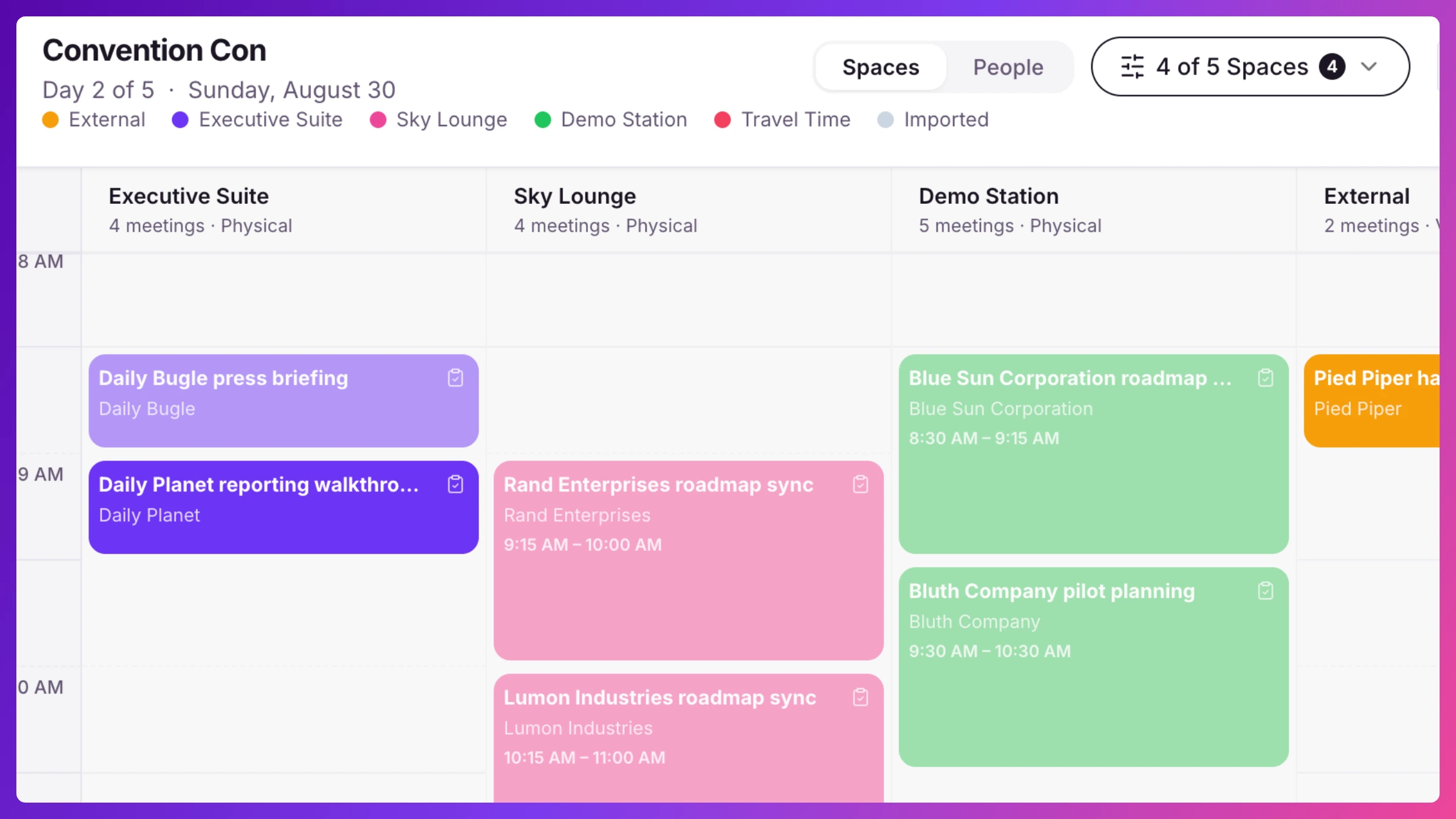
| Meetings | The show’s meetings as a List or a Schedule. The schedule lays out the day grid by Space or by Person | Click any block to open the meeting, add a meeting, edit, duplicate, Jump to date, send check-in codes to the kiosk |
| Requests | This show’s request queue | Approve or decline requests |
| Organizations | This show’s organizations and contacts, with target filtering and Brief shortcuts | Add or edit organizations, open Briefs and profiles |
| Briefs | This show’s Briefs | Review, edit, publish |
| Availability | Your own arrival, departure, and blocked time for the show | Set your availability |
| Event settings (Events, then the event’s Settings) | A rail of groups: General, Meetings (rules and Spaces), Team & targets, Booking & check-in (booking page, emails, kiosk), Team info (announcements and logistics), Recap, Budget & revenue, and Danger zone | Edit show details, add Spaces, manage the roster and targets, customize public surfaces, enter financials |
Team member screens
Section titled “Team member screens”Team members get the same pages under the same names, scoped to their own shows, meetings, and requests. Your account Settings are in the profile menu at the bottom of the sidebar, and you pick which show you’re looking at from the picker in the top bar. On a phone, a bottom tab bar gives you Schedule, Status (your availability), and Notes.
| Screen | What it shows | What you can do |
|---|---|---|
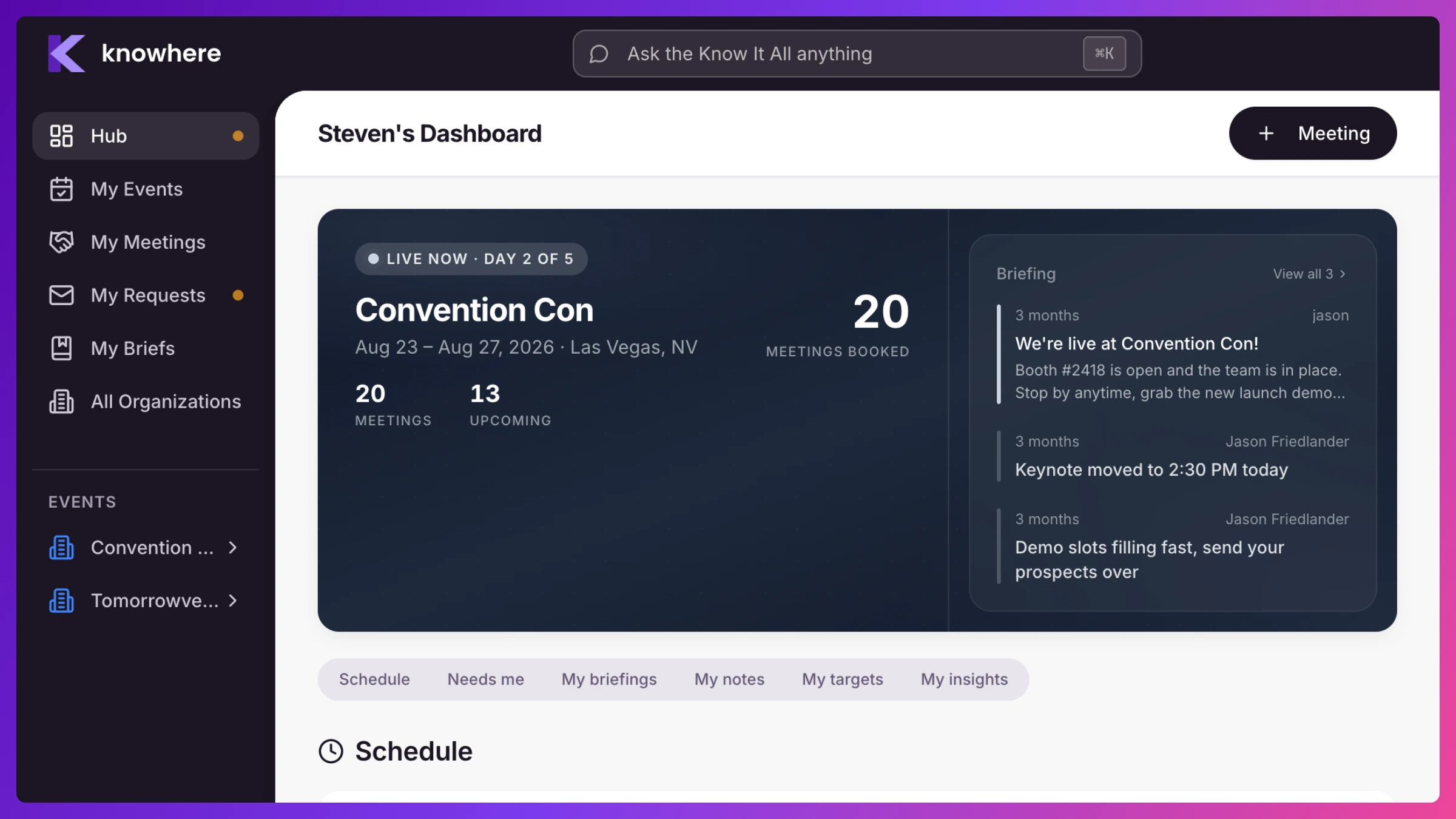
| Overview | Your day: what needs you, your meetings today, your targets, and your links | Jump into your meetings |
| Requests | Meeting requests routed to you across your shows | Approve & schedule, or decline with a note |
| Meetings | Your meetings down a date rail, as a list or a schedule, with filters | Open any meeting, add notes |
| Check in | Your meetings for the day, built for a phone. Reached from the Up next card on Schedule | Check people in as they arrive |
| Notes | Your notes across your meetings | Write and review notes |
| Briefs | The Briefs reading room for your accounts and meetings | Open and read published Briefs |
| Organizations | The company directory, read-focused | Browse organizations and contacts |
| Availability | Your arrival and departure dates and time-slot grid for the show you picked | Set arrival and departure, mark slots unavailable |
Public pages (no login)
Section titled “Public pages (no login)”| Page | Who uses it | What it does |
|---|---|---|
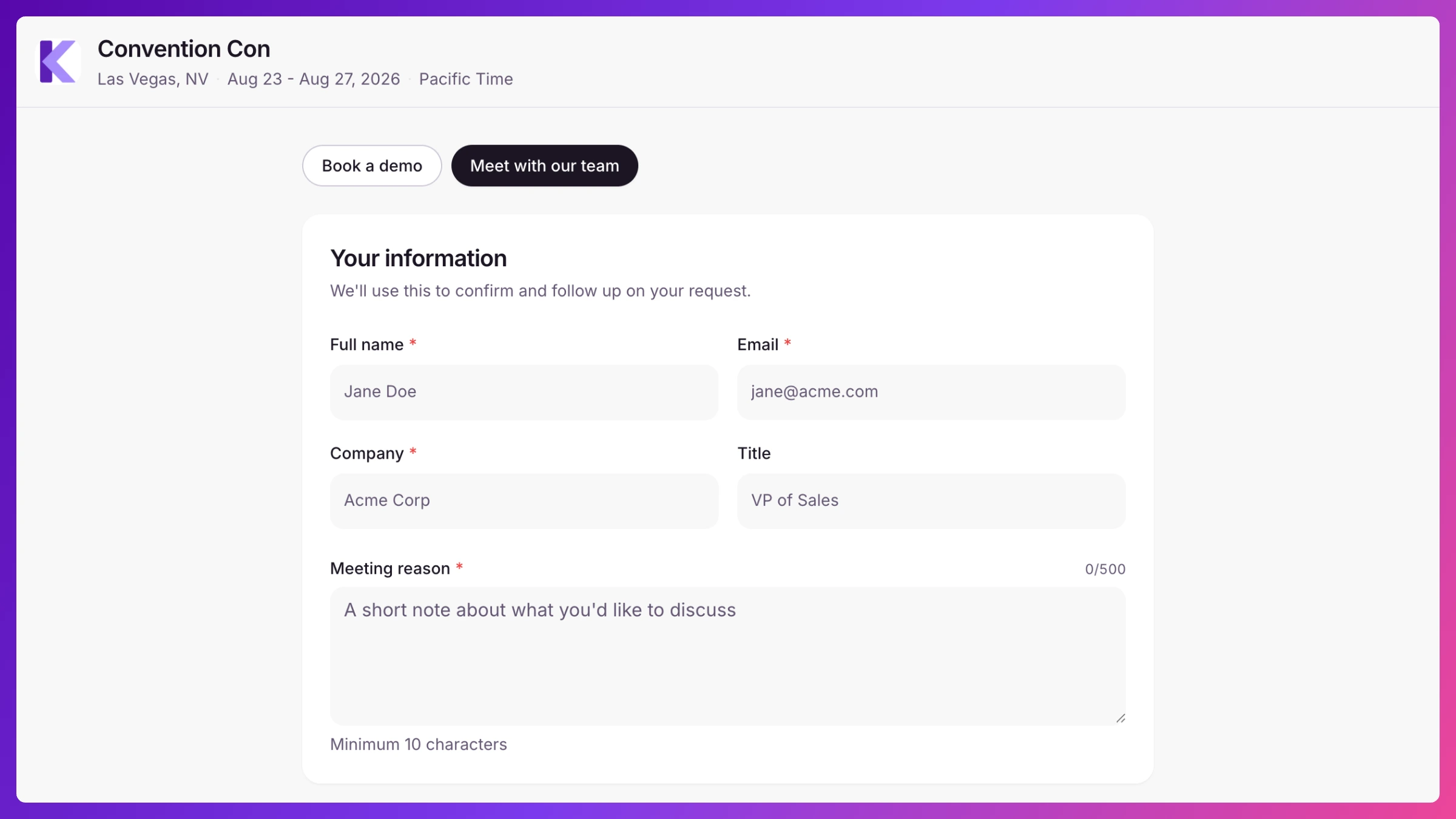
| Event booking page | Your customers | Event-branded page: contact info, date/time picker with alternate times → sends a meeting request. Events with demo stations open with a choice of Book a demo (pick a demo, grab a fixed-length slot, optional instant confirmation) or Meet with our team |
| Personal booking page | Your customers | The same, scoped to one team member’s availability |
| RSVP page | Meeting attendees | One click from the calendar-invite email: Accept, Maybe, or Decline, shown with the meeting’s details and changeable any time. From the same page a guest can request a different time (the meeting stays put until a manager approves) or remove themselves from the meeting entirely |
| Invite acceptance | New teammates | Accept a team invitation and set a password |
The kiosk (event day)
Section titled “The kiosk (event day)”A separate, event-branded screen for your booth or meeting-room entrance, opened from a per-event link and customizable (welcome text, calls to action) in the event’s Settings under Booking & check-in.
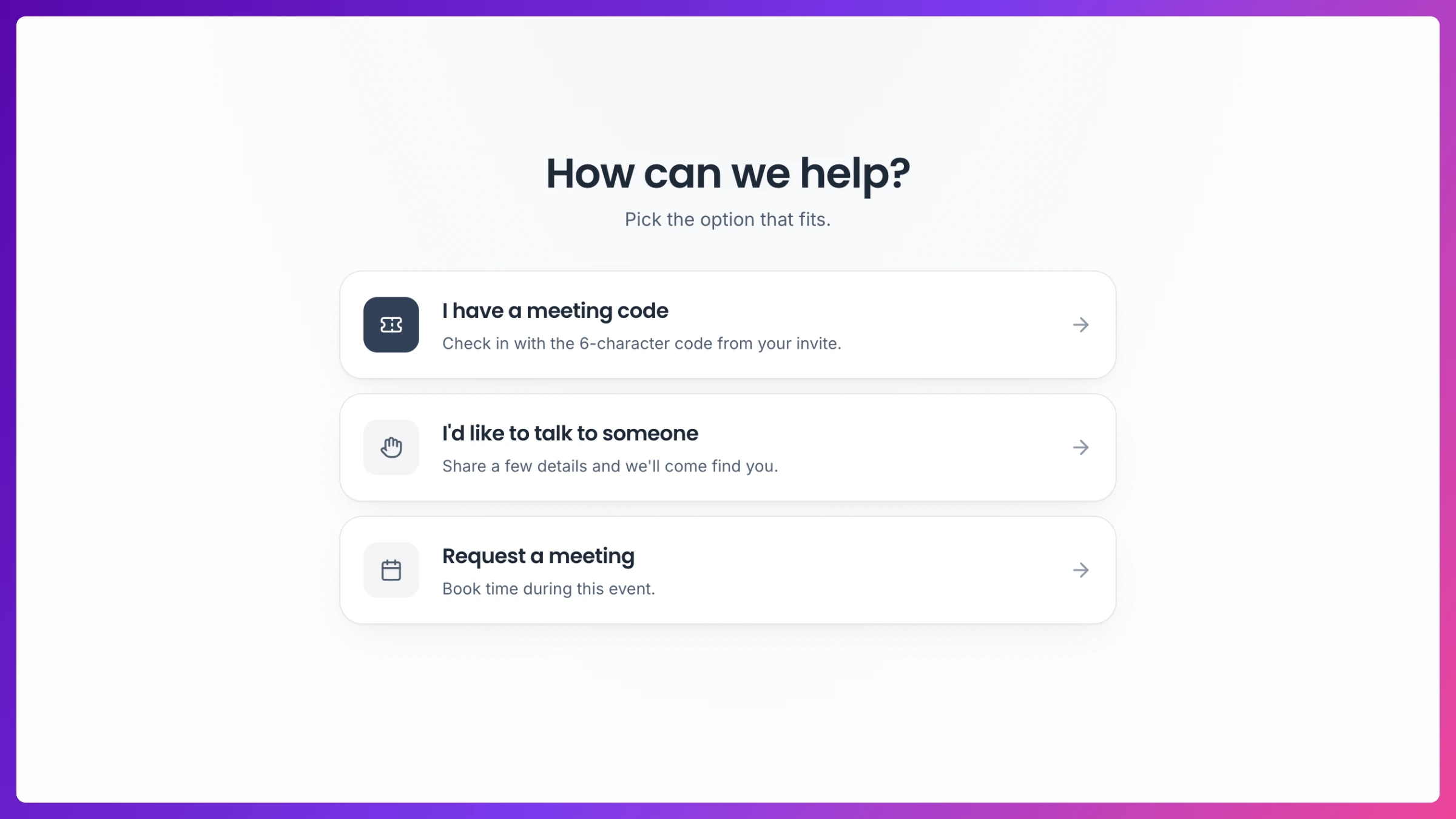
- Landing: three choices: Check in, I’d like to talk to someone (walk-in), Request a meeting.
- Check-in: attendee enters the six-character check-in code from their calendar invite, picks their name from the meeting’s roster, confirms, and is checked in.
- Walk-in: an unexpected visitor registers themselves. They appear instantly in the manager’s live queue to be attached to a meeting.
- Meeting request: an ad-hoc request that lands in the event’s request queue like any other.
Signing up and getting started
Section titled “Signing up and getting started”New users create an account with email/password or Google. Returning users can also sign in with a one-time code emailed to them, which is also how you reset a forgotten password: request a code, no password required. First-run onboarding walks a new company through: your profile → create the company → pick a plan → set up your first event (details → Spaces → team → targets → hours → share). Invited teammates skip straight in by accepting their email invitation.