How to schedule a meeting
A meeting has a time, a Space, your team, the customer side, and notes. Knowhere checks for conflicts as you build it. Managers schedule for anyone, team members schedule their own.
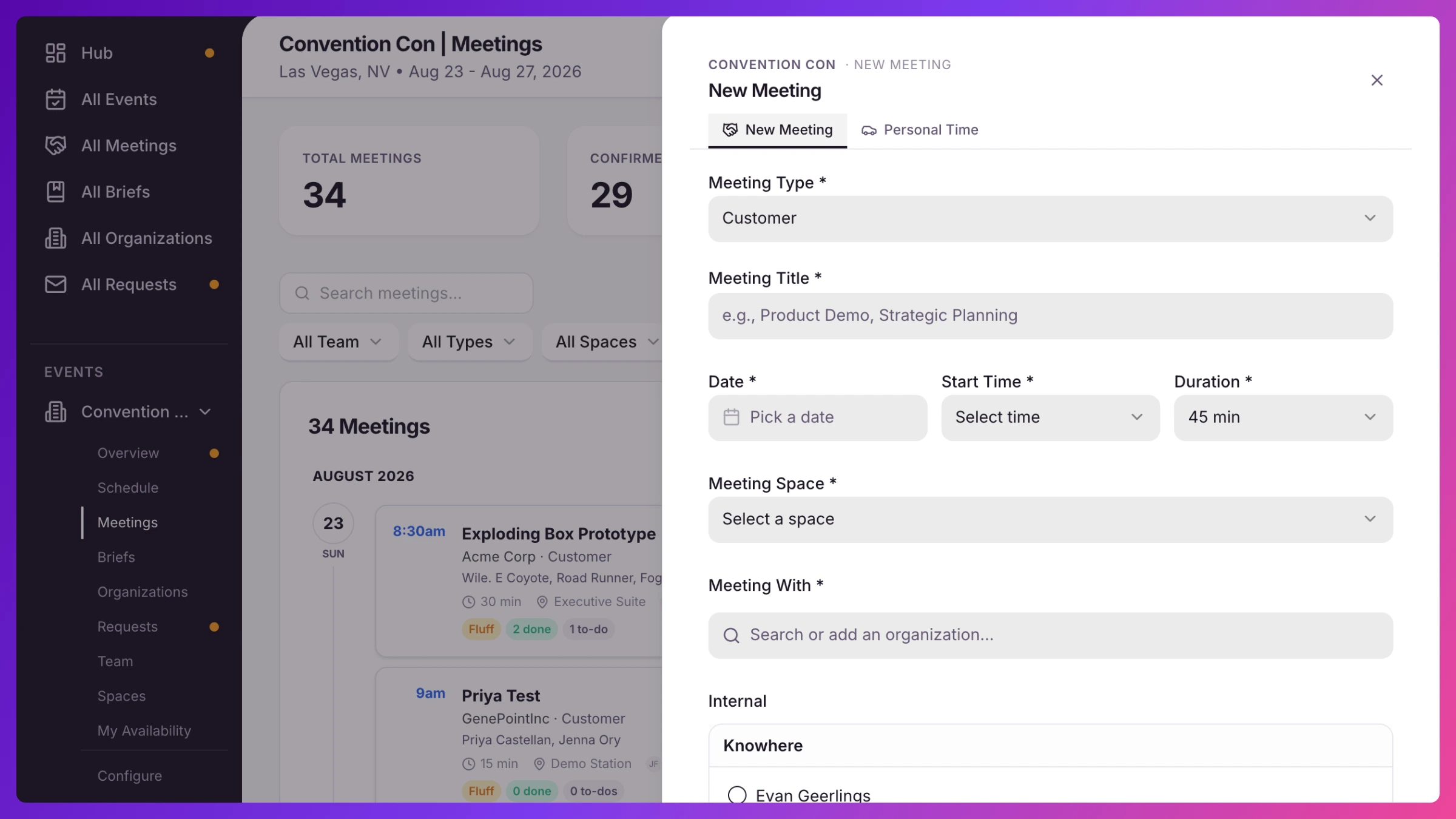
- From an event, click the Meeting button in the top-right (it’s on the Overview, Schedule, and Meetings screens). The New Meeting panel opens.
- Basics. Pick a Meeting Type (Customer, Partner, Demo, Internal, and more) and enter a Meeting Title.
- Date and time. Set the Date, Start Time, and Duration.
- Meeting Space. Choose a Space. Knowhere checks the Space and the time as you go, and shows a warning if something collides.
- Meeting With. Add the customer side. Pick an organization, then check the contacts attending. To add a new guest, click Add New Contact and enter their Full Name, Email, and Title. Customer, Partner, and Analyst meetings need at least one organization.
- Internal. Check the team members attending. Knowhere flags anyone who isn’t available at that time.
- Status. Leave it Confirmed, or set Hold (reserve the slot quietly, no invites until you confirm). Managers can also set a Meeting Owner. More on holds in Hold a meeting slot.
- Notes. Anything in Cal Invite Notes is included in the calendar invite.
- Optional: turn on Repeat across event days to create the same meeting on multiple days.
- Click Create Meeting.
If there’s a conflict
Section titled “If there’s a conflict”If an attendee or Space is already booked, a red conflict line appears under the time, naming who or what collides. Click Find a time to see open slots and suggested times, or go ahead and book it: while a conflict remains, the main button reads Book anyway, and the meeting is saved and confirmed as usual. More in Conflict detection & availability.
What’s next
Section titled “What’s next”When calendar invites are on for the event, attendees get a real invite with an RSVP link. See Meetings & calendar invites.