How to track target coverage
Once you’ve marked your targets, Knowhere tracks whether each one actually gets a meeting, and who’s on the hook for it. This is how you spot the gaps while there’s still time to fix them. Manager task. (Team members see their own targets.)
See coverage across the team
Section titled “See coverage across the team”- Open Signals with no show picked, and find the Team coverage section.
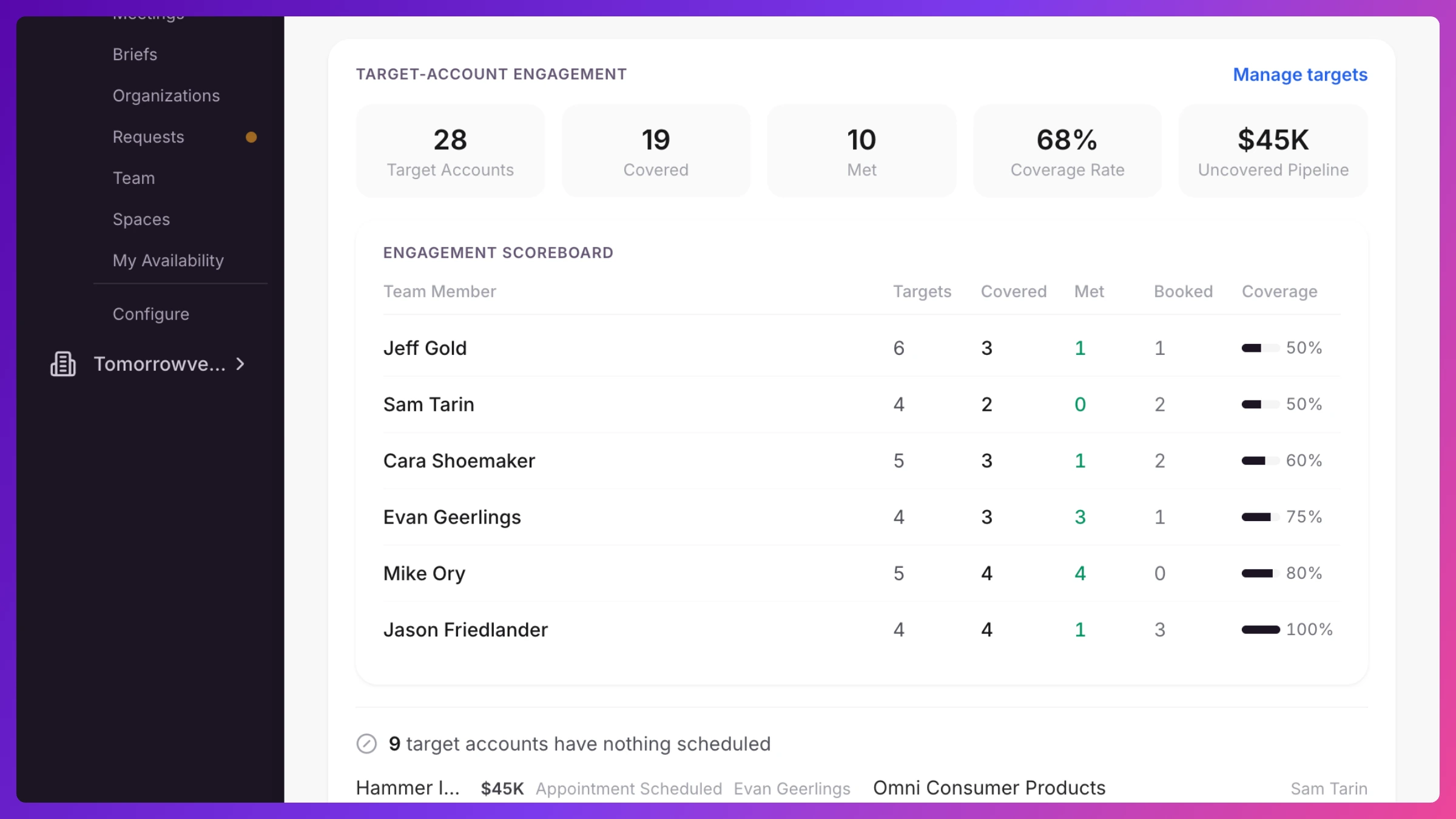
- The Engagement Scoreboard lists one row per account owner with Targets (how many they own), Covered (have a meeting), Met (checked in), Booked (they booked it themselves), and a Coverage percentage. It’s sorted worst-covered first, so the team members who need help are at the top. Click a team member to see their target list.
- A Coverage risk banner appears when someone owns targets but isn’t staffed on the event, so no account goes quietly uncovered.
See coverage for one event
Section titled “See coverage for one event”- Pick the show in the top bar, open Signals, and go to the Engagement tab.
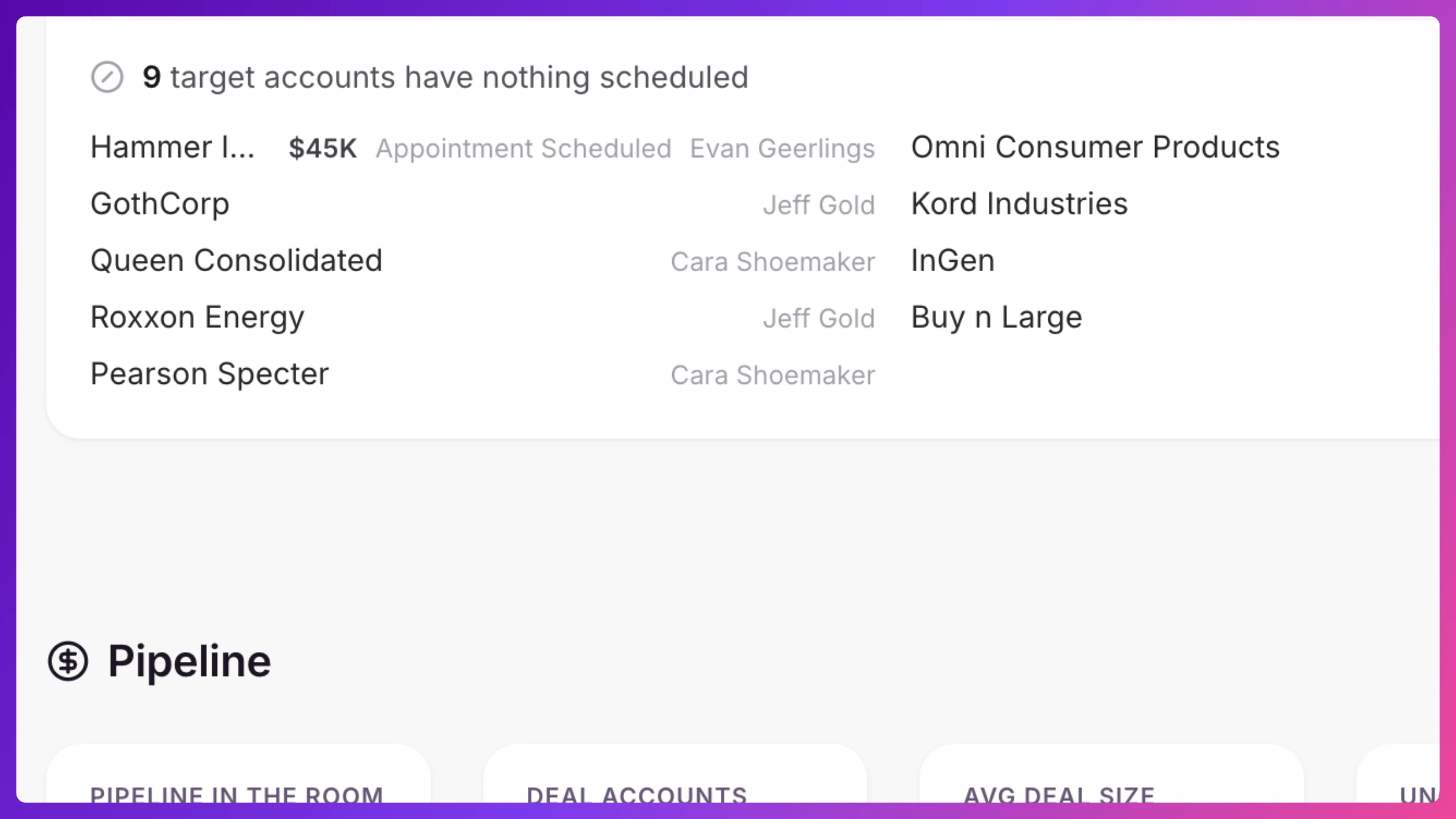
- The target coverage widget shows the same picture scoped to this show, plus an Unmet targets list: the accounts with nothing scheduled. Click any account to open it and book time.
If you’re a team member
Section titled “If you’re a team member”Open your Overview and look for the Targets card. It lists the accounts assigned to you and where each one stands.
What’s next
Section titled “What’s next”Coverage tells you the meetings happened; Review Sales Inference tells you what they produced. To change who owns an account, see Assign account owners. To mark or re-tier a target, see Add an organization. Full detail in Organizations & targets.