Sales Inference
Business & up
Forty meetings on the calendar tells you the booth was busy. It doesn’t tell you whether the right people showed up, whether anything was promised, or whether those promises got kept. Sales Inference answers that. It reads what your team already records, attendees, check-ins, and meeting notes, and grades the event on what the meetings actually produced. Nothing here is hand-entered. Save your notes and the numbers follow.
Who it’s for: Managers. It lives on the event Overview, in the section labeled Inference on the page’s jump bar. Team members get their own slice, My commitments, scoped to their own meetings.
A small pill in the section header reads Scheduled before the event and Live during it (it disappears once the event has wrapped), because the same numbers mean different things before and after doors open: booked meetings first, then what actually happened.
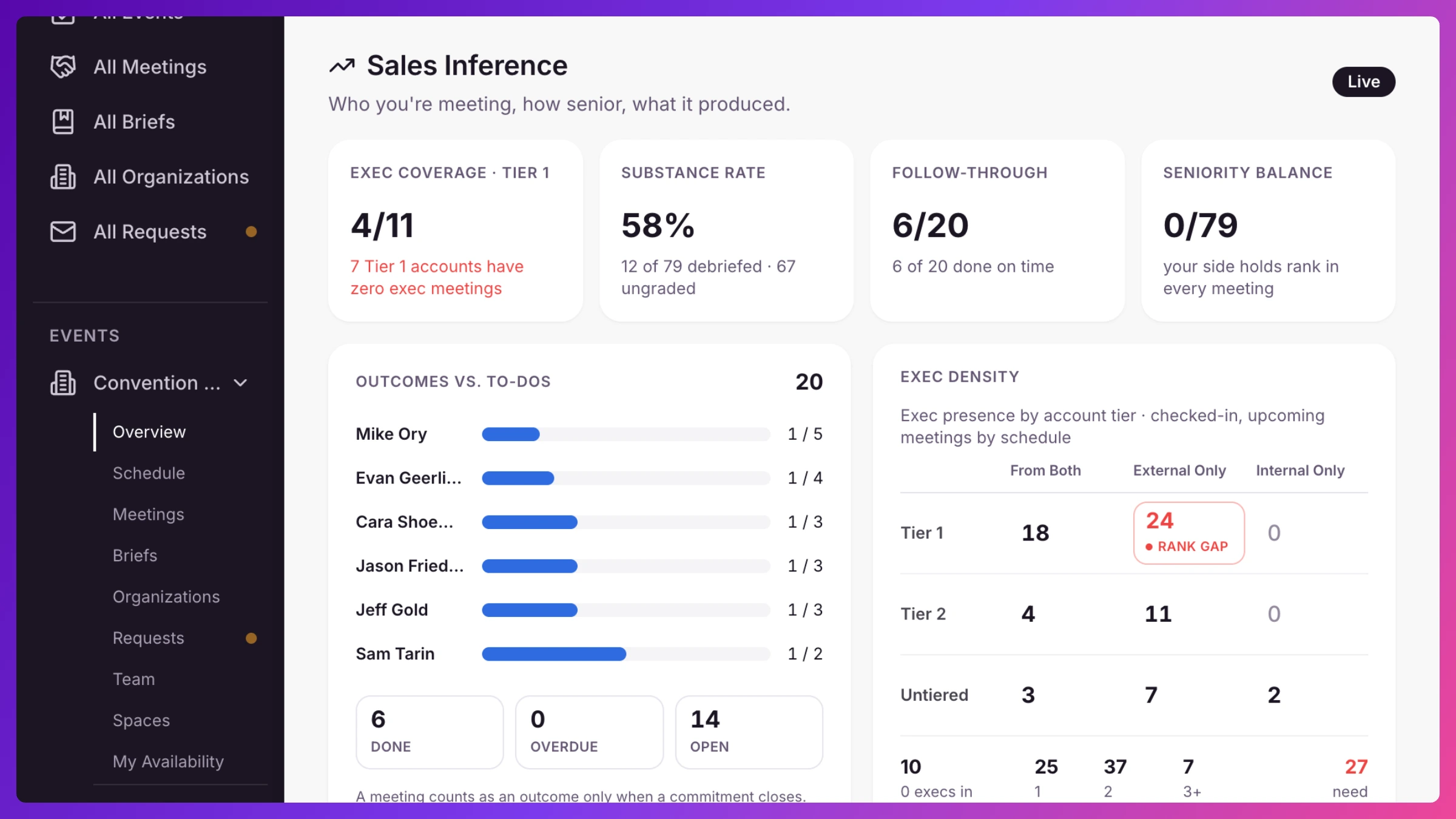
The four cards
Section titled “The four cards”The zone leads with four numbers. Each card’s subtitle tells you whether to relax or act, and turns red when the answer is act.
- Exec coverage · Tier 1: How many of your Tier 1 targets have at least one meeting with an executive in the room. The one number that says whether your most important accounts are getting your most important conversations.
- Substance rate: The share of summarized meetings graded Concrete. To keep the number honest, it stays hidden until at least 5 meetings have been graded.
- Follow-ups: Commitments completed on time against everything your team promised. An undated commitment turns overdue 7 days after it was created, but once it’s closed it counts as on time.
- Seniority balance: Meetings where the customer’s most senior person out-ranks yours. A rising number means you’re sending juniors into meetings full of their executives, and before the event the subtitle says so: restaff now.
Two of the cards need to know who counts as an executive, so until attendee seniority is classified they show a placeholder saying Knowhere is still classifying seniority, instead of a guess. Cards link into the event’s meetings and organizations lists so you can see the meetings behind the number.
Outcomes vs. follow-ups
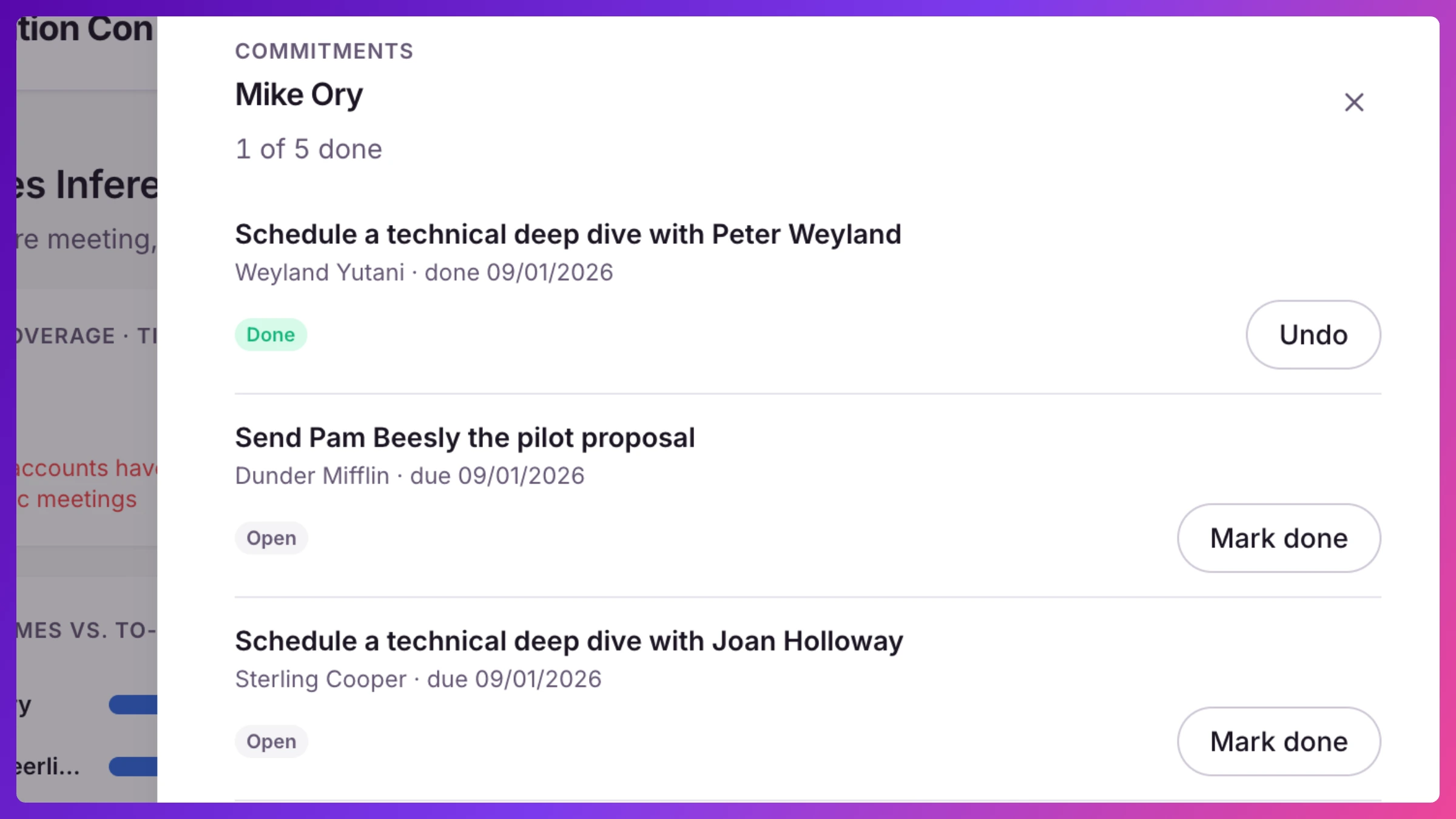
Section titled “Outcomes vs. follow-ups”The commitment ledger. One row per person who owns commitments, with a progress meter that only fills for completed work and a count like 3 / 5 with a red · 2 overdue tail when someone is behind. Three tiles summarize the event: Done, Overdue, Open.
Click a person’s row and a panel lists their individual commitments, each one readable at a glance: what was promised, which meeting it came from, and when it’s due. A commitment the notes didn’t date shows (7-day default) after its due date, so you know the clock is Knowhere’s, not the customer’s. Mark items done (or undo) right from the list, and click through to the meeting behind any of them.
The footer states the philosophy: a meeting counts as an outcome only when a commitment closes.
Meeting substance
Section titled “Meeting substance”Every meeting with notes gets a substance grade, automatically, when the notes are saved:
- Concrete: at least one commitment with an owner and a date, or a next meeting booked.
- Directional: interest expressed, budget or timeline or decision-makers mentioned, but nothing committed.
- Fluff: the extraction ran and found pleasantries only.
- No summary: not graded yet, either no notes at all or notes that haven’t been processed. A nudge, not a verdict.
The rule is deterministic. The AI extracts facts from your notes, commitments, budget mentions, named decision-makers, risks; the grade then falls out of fixed criteria. The AI never decides the grade, so two identical summaries always land the same.
The Meeting substance card shows the event’s distribution across the four states as a single bar, click any segment to open the meetings list filtered to that grade, plus counts of the six extracted signals: commitments, next meetings booked, budget mentions, timeline mentions, named decision-makers, and risks or objections logged. One reading note: this card’s own headline percentage is the broader measure, Concrete and Directional together, everything that produced at least a signal, while the Substance rate card above counts Concrete alone.
Exec density
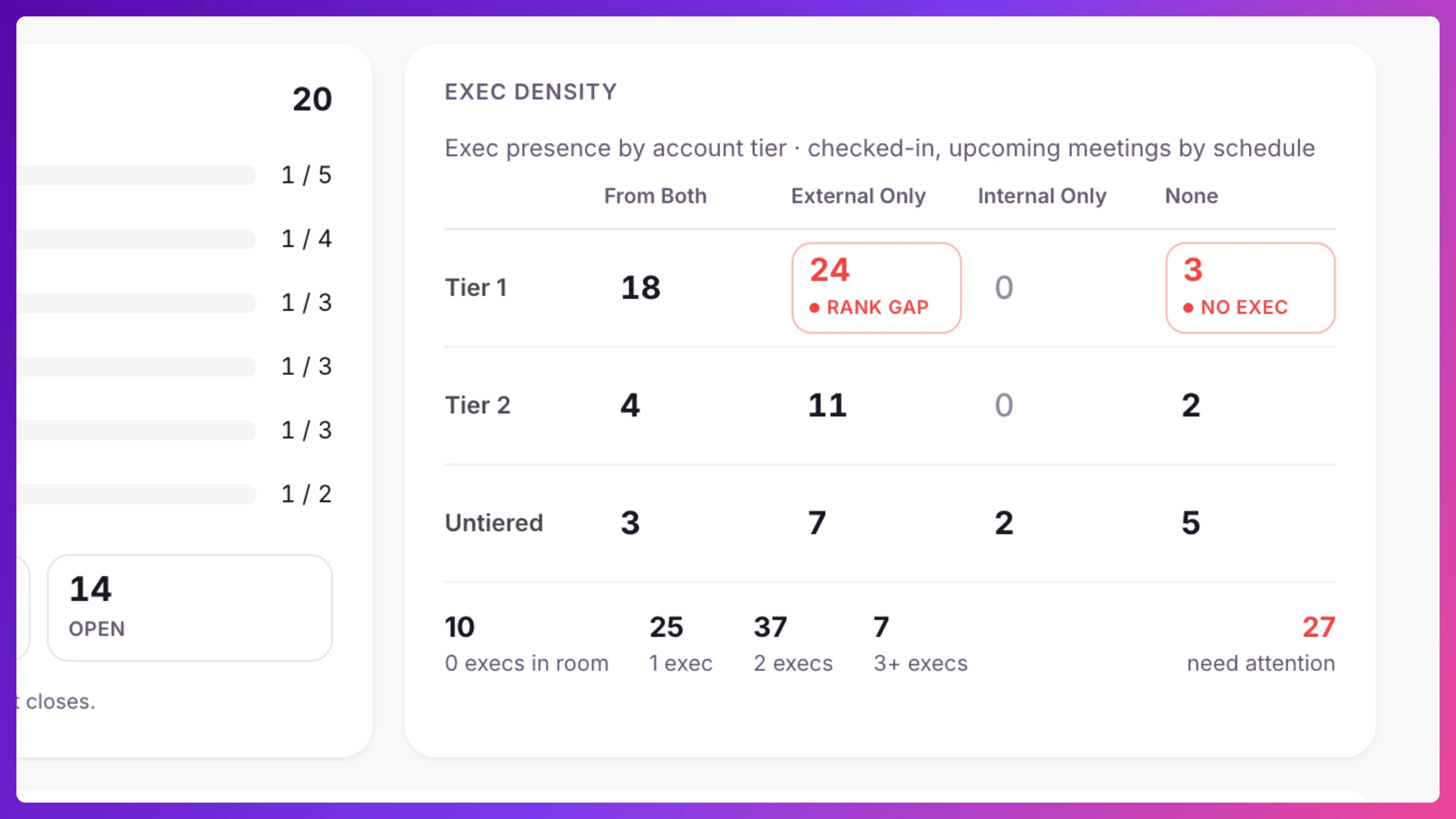
Section titled “Exec density”A cross-tab of account tier against executive presence: for Tier 1, Tier 2, and untiered accounts, how many meetings had execs From Both sides, External Only, Internal Only, or None. Two cells get flagged in red, both on the Tier 1 row:
- RANK GAP: on a Tier 1 target, their exec came and yours didn’t.
- NO EXEC: a Tier 1 target got meetings, but never saw an executive.
Any cell with meetings in it opens them. Below the matrix, a histogram shows how many meetings had 0, 1, 2, or 3+ executives in the room. Before the event the matrix reads from scheduled attendees; once the event is live, meetings that have started read from check-ins while the rest still read from the schedule.
Earmarks: when the room changes under you
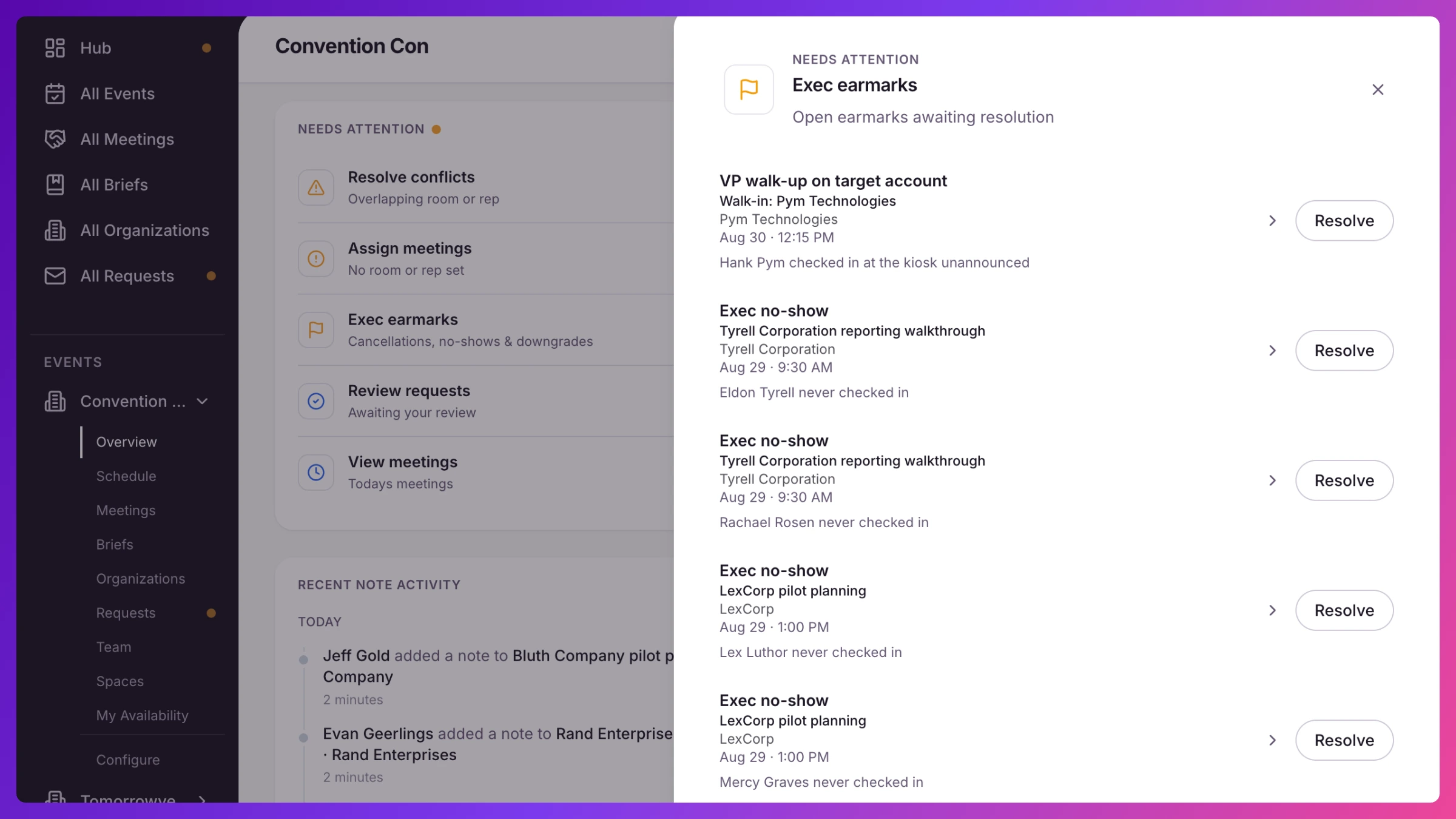
Section titled “Earmarks: when the room changes under you”Knowhere watches the customer side of every meeting and raises an earmark when the seniority you were promised doesn’t materialize:
- Exec cancelled: a customer executive declined the invite.
- Composition downgraded: an exec declined and their account swapped in someone more junior.
- Exec no-show: an exec was expected, the meeting ended, and they never checked in.
- VP walk-up on target: an unexpected customer executive from a target checked in at the kiosk. Not a problem, an opportunity, but one somebody should act on.
Earmarks appear in the Needs you inbox on Overview as Exec earmarks while the event is scheduled or live. Each one names the person, the meeting, and what happened, and stays open until someone resolves it with a note answering one question: what happened? The note is required, because “we found out why” is the entire point. Earmarks never fire on your own team, only on the customer side. Best resolved before you fly home: once the event wraps, team members can still work their own flags from their Overview, and the manager’s inbox moves on.
On each meeting
Section titled “On each meeting”The inference layer follows every meeting around the app:
- On the event’s Meetings list, each meeting carries a grade chip (Concrete, Directional, Fluff), a follow-up count, and a done count. A meeting with notes but no grade yet shows Ungraded; a meeting with no notes shows No summary.
- Once a meeting is graded, its panel gains a Substance card, the grade plus the extracted commitments and buying signals, and a Follow-ups card where the commitment’s owner (or any manager) can mark items done.
- The event’s Meetings screen gains a Substance filter: All Grades, Concrete, Directional, Fluff, or Not graded.
What powers it
Section titled “What powers it”Three inputs, all of which you control:
- Notes. Saving a note on an ended meeting triggers the extraction and grade automatically. No button, no waiting. Re-saving unchanged notes changes nothing.
- Account tiers. Tier 1 and Tier 2 come from the tier you set on each organization (Organizations & targets). No tiers yet, and the exec coverage card just reads “No Tier 1 targets yet”.
- Personas. Each contact carries a seniority level (C-level, VP, Director, IC) and function, classified automatically from their job title. A badge shows whether the value is Inferred or Manual. Fix any of them from the contact’s detail panel; a manual value is never overwritten, and when Knowhere isn’t confident it leaves the field unknown rather than guessing.
Who counts as “an executive” is yours to define: Settings → Company → Defaults → Executive level for engagement metrics, default VP. Change it and every metric recomputes, past and future, next time you look.
For team members
Section titled “For team members”Team members see their own slice on their Overview:
- Follow-ups: the follow-ups extracted from your meetings, with one-tap Mark done.
- Needs you: open earmarks on meetings you attend, with the same resolve-with-a-note flow. It only appears when something needs you.
How to
Section titled “How to”Step-by-step, with the exact clicks: