How to set up a demo station
A demo station lets visitors book a fixed-length demo slot on your public page instead of requesting a meeting with a person. Setup is two places, the Space itself, then the event’s booking settings. Manager task.
Step 1, mark the Space as a station
Section titled “Step 1, mark the Space as a station”- In the left sidebar, open your event and click the Spaces tab.
- Click the Space button to add a Space, or click an existing Space to edit it.
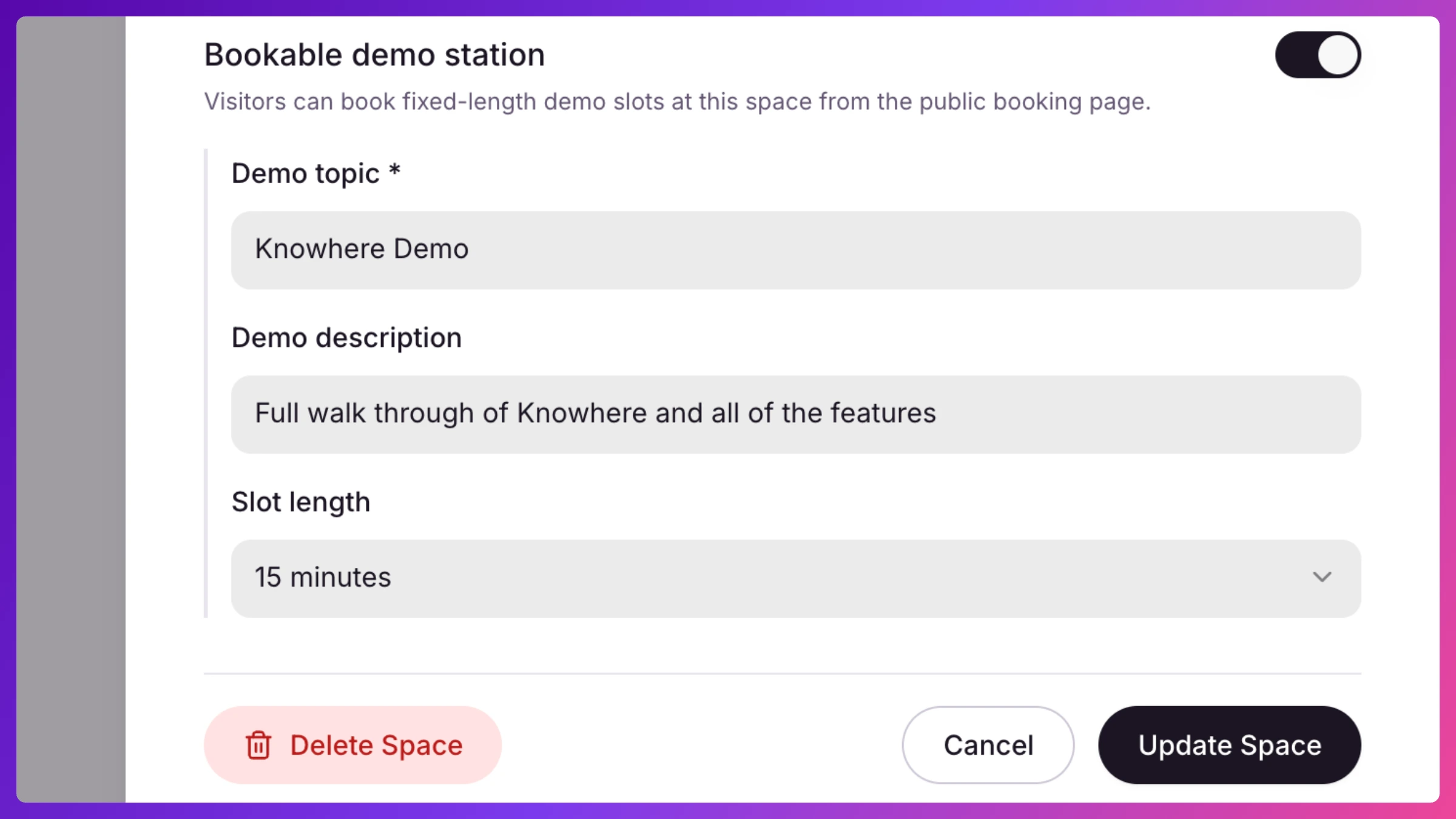
- Turn on Bookable demo station.
- Fill in:
- Demo topic (required), what visitors see, for example “MicroStation”.
- Demo description (optional), one line shown under the topic.
- Slot length, 15, 30, 45, or 60 minutes.
- Click Add Space (or Save).
Step 2, turn demo stations on for the event
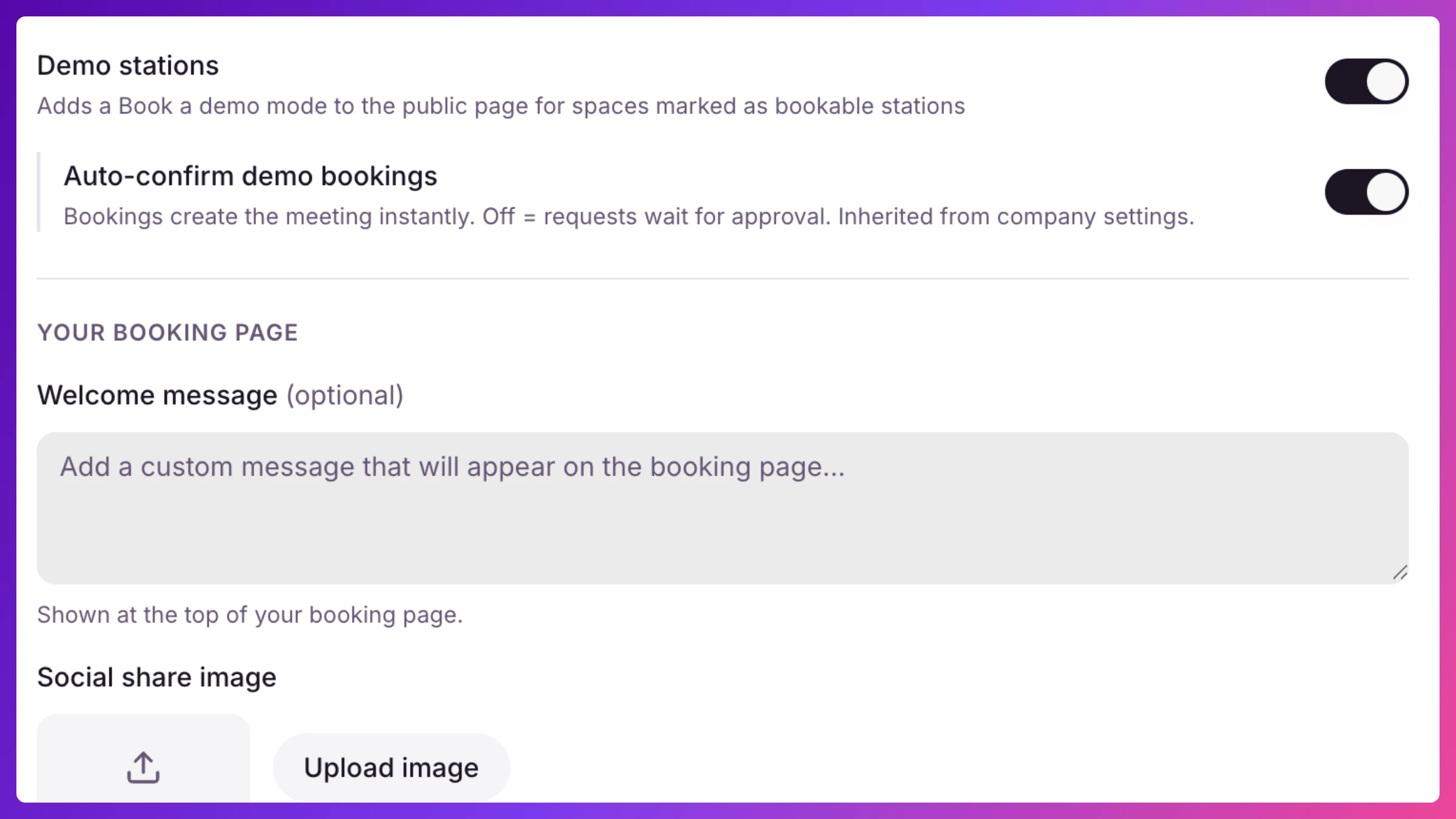
Section titled “Step 2, turn demo stations on for the event”- In the same event’s Settings, go to Booking & check-in and the Booking page section.
- Make sure Enable Public Booking is on.
- Turn on Demo stations. This adds a Book a demo mode to your public page for every Space you marked as a station.
- Optionally turn on Auto-confirm demo bookings. When it’s on, a booked slot becomes a confirmed meeting instantly. When it’s off, demo bookings wait in your request queue for approval.
What’s next
Section titled “What’s next”Open your public booking page (Preview Booking Page on the same screen) and you’ll see the Book a demo option. For the visitor’s side and how auto-confirm behaves, see Requests & public booking.