CRM Sync
Enterprise
Your CRM knows who the account is. Knowhere knows what happened at the booth. CRM Sync connects the two, so your reps stop retyping meeting notes into Salesforce on the flight home and your pipeline reflects what the event actually produced.
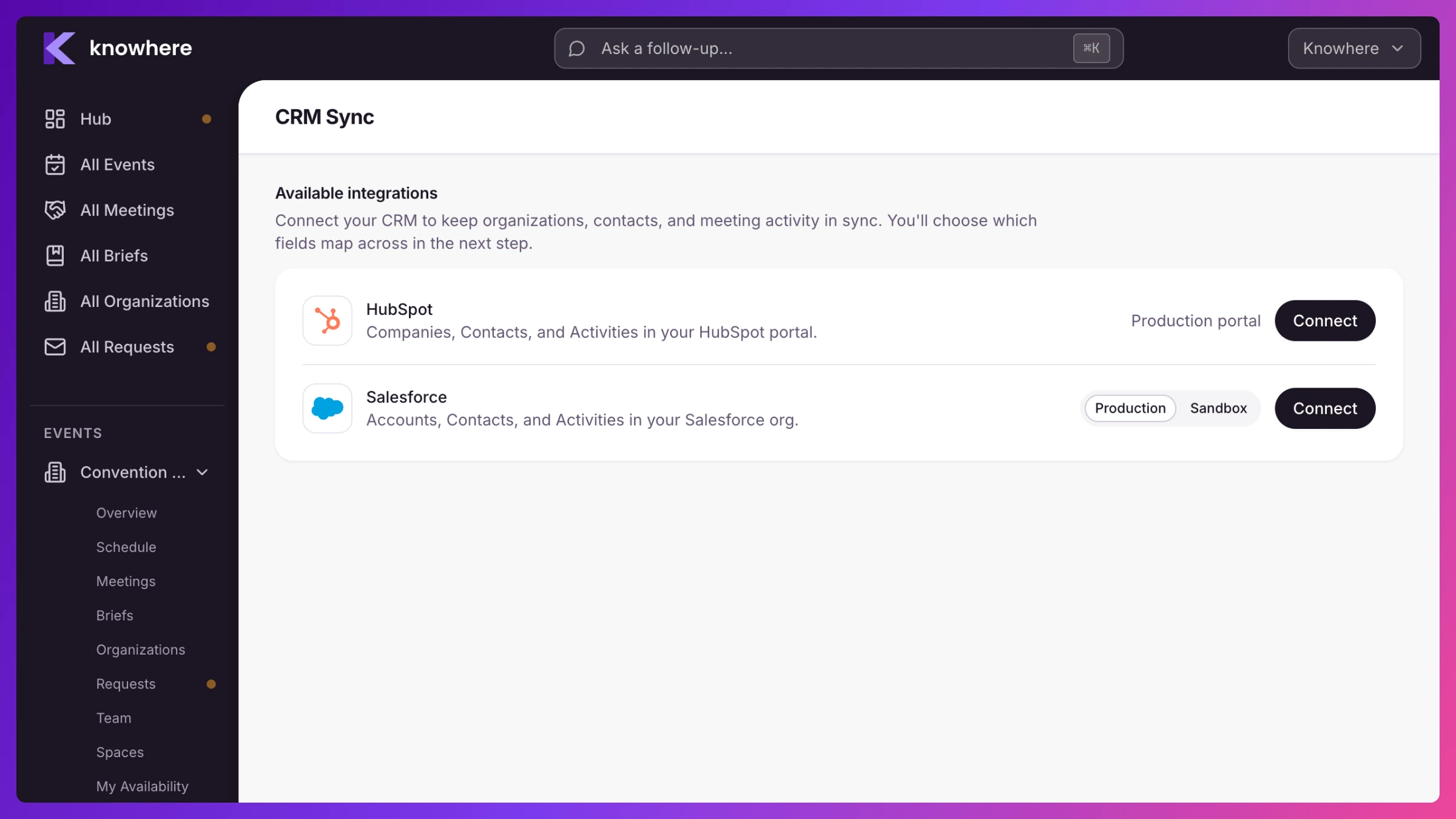
Knowhere connects to Salesforce and HubSpot. It pulls your companies, contacts, and open deals in, and pushes completed meetings and filed debriefs back out. Nothing else moves.
Who it’s for: Managers. Setup lives in Settings → CRM Sync, which appears in the manager settings menu once the plan allows it. Team members don’t see it, but they see the results everywhere: the account they’re meeting is already in the picker, the deal value is on the meeting, and their debrief lands in the CRM without them opening it.
Connecting also needs someone with admin rights in your CRM, at least once. See Prepare your CRM.
What moves, and which way
Section titled “What moves, and which way”The rule is about who owns the record, and it is not configurable per field:
| Owner | Direction | |
|---|---|---|
| Companies / Accounts | Your CRM | Pulled into Knowhere |
| Contacts | Your CRM | Pulled into Knowhere |
| Deals / Opportunities | Your CRM | Pulled into Knowhere, read-only |
| Meetings | Knowhere | Pushed to your CRM |
| Debriefs | Knowhere | Pushed to your CRM |
Your CRM is the source of truth for who the customer is. Knowhere is the source of truth for what happened at the event. Nothing is jointly owned, because “both sides can edit it” is just last-write-wins with a friendlier name.
The one exception: an organization or contact you create in Knowhere has no CRM record yet, so the first push carries everything you typed. From the second push onward, your CRM’s own values stand.
What Knowhere adds to your CRM
Section titled “What Knowhere adds to your CRM”Knowhere writes into your existing companies, contacts, meetings, and notes. It only ever adds its own fields, and it never changes or deletes yours.
- Identity fields (required). One per object. They hold none of your data. They exist so Knowhere can recognize a record it already synced instead of writing a second copy. Nothing syncs without them.
- Reporting fields (recommended, and you can decline them). Nine fields on companies and contacts, listed in full below. They exist so event history arrives in your CRM as structured values you can filter and report on, rather than only as note text.
Declining the reporting tier still gives you a working sync. Turning it off later is safe. If you ever remove Knowhere, the fields stay where they are, empty and harmless, rather than being deleted out from under a report someone built on them.
The nine reporting fields
Section titled “The nine reporting fields”Six on the company or account record:
| Field | Shown as | Type | Holds |
|---|---|---|---|
knowhere_last_event | Knowhere Last Event | Text | Most recent event this organization was met at |
knowhere_last_event_date | Knowhere Last Event Date | Date | Date of that event |
knowhere_meeting_count | Knowhere Meeting Count | Number | Meetings held with this organization |
knowhere_last_debrief_date | Knowhere Last Debrief Date | Date | When the most recent debrief was filed |
knowhere_open_followups | Knowhere Open Follow-ups | Number | Follow-ups still open from any debrief |
knowhere_debrief_outcome | Knowhere Debrief Outcome | Text | Outcome flagged on the latest debrief |
Three on the contact record:
| Field | Shown as | Type | Holds |
|---|---|---|---|
knowhere_last_met_date | Knowhere Last Met Date | Date | When this person was last met |
knowhere_meeting_count | Knowhere Meeting Count | Number | Meetings this person attended |
knowhere_last_event | Knowhere Last Event | Text | Most recent event this person was met at |
The types are the point. A date stored as text can’t be used in a date filter, and a count stored as text can’t be summed, which is exactly what stops a debrief from becoming a report. On HubSpot, Knowhere creates all nine with the right types itself. On Salesforce your admin creates them by hand, so the type column above is the one thing not to improvise. See Prepare your CRM.
Where these stand today. Knowhere creates these fields during setup and they start empty. Filling them in automatically after each debrief is not live yet, so treat them as the destination that’s being built rather than a report you can run this week. Accepting the tier now means the schema is already in place and nobody has to revisit their CRM later. An empty custom field costs your CRM nothing.
The two things that do reach your CRM today are the meetings themselves and the debrief note attached to them.
How to use it
Section titled “How to use it”Setup is four steps on one page, and you can leave and come back at any point.
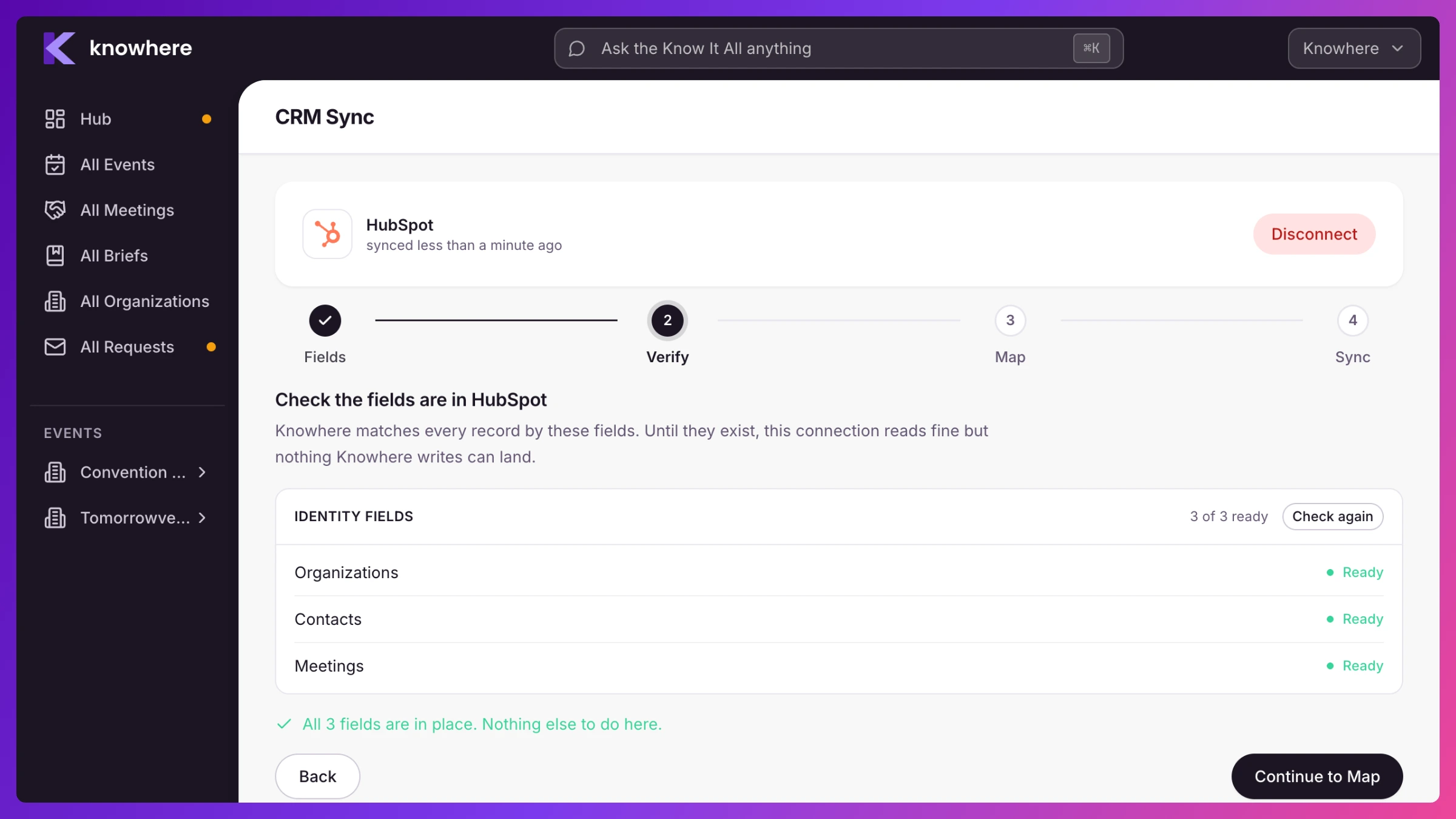
- Fields. Review what Knowhere will add and decide whether you want the reporting tier.
- Verify. Confirm the fields actually landed. HubSpot creates them itself. Salesforce cannot let an app create schema, so your Salesforce admin adds them by hand, and this step gives you a Copy message for your admin button that writes the request for you.
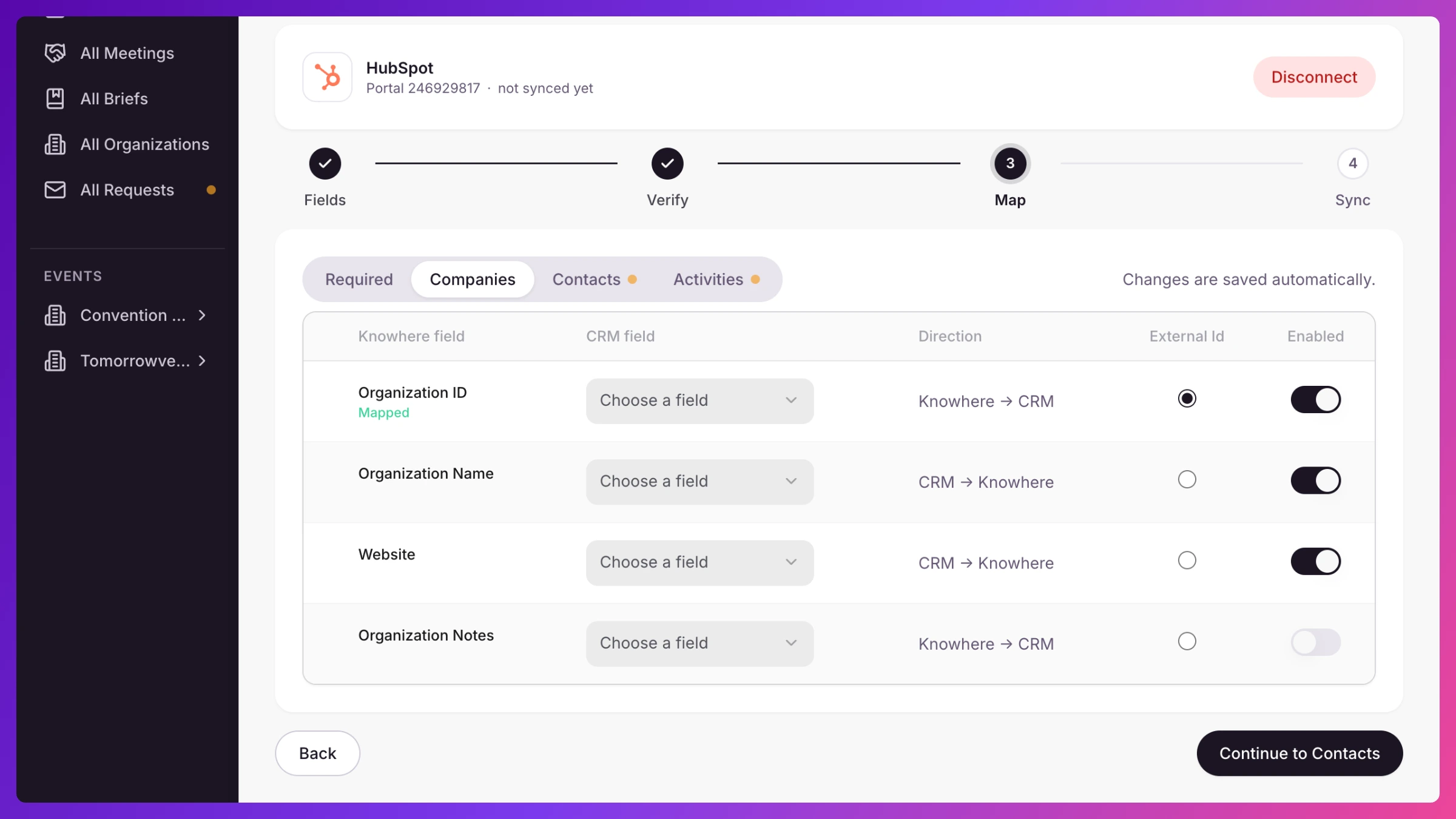
- Mapping. Match Knowhere fields to CRM fields. Knowhere pre-fills what it can. Changes save automatically.
 4. Sync. Choose which accounts to pull in, check the count, and go.
Full walkthrough: Connect your CRM.
Once connected, the page shows one card with your provider, which org or portal you’re pointed at, when the last sync ran, and whether anything failed. Sync now runs immediately instead of waiting for the next scheduled pass. It reports its three jobs separately (sending to your CRM, pulling records, pulling deals), because “deals didn’t pull” and “nothing sent” are very different problems.
Choosing what syncs
Section titled “Choosing what syncs”You pick the scope once, on the Sync step:
- A CRM list. One of your existing CRM lists.
- A filter. Accounts matching a filter, for example
Industry = Technology. - Paste a list. Paste account names or domains, one per line, straight from a spreadsheet or an event registration list. Knowhere matches them and tells you what matched, what didn’t, and what was ambiguous before you commit.
- Everything. Everything updated in the last 24 months, up to 50,000 accounts.
Start narrow. You can widen later, and a first run against five accounts tells you whether the mapping is right far faster than a run against five thousand.
Separately, Lightweight directory (on by default, and worth keeping on) indexes the names and domains of every account in your CRM, without pulling the full records. That index is what lets a rep find an account in a picker on day one, even though it was never in scope.
Pipeline on your events
Section titled “Pipeline on your events”Once you’re connected, any event with a met account or a target account carrying an open deal gets a Pipeline section on its Event Overview page. The accounts counted here are either ones your team met at this event, or the event’s own target accounts, whether they were met or not. That’s what lets the Uncovered tile below show pipeline sitting on an account nobody met. Everything in it is read from your CRM: nothing here is editable in Knowhere, and nothing claims the event caused a deal to move.
Four tiles at the top:
- Pipeline in the room, total open value across every deal on an account met at the event.
- Deal accounts, how many of the accounts met carry an open deal, out of how many were met.
- Avg deal size, average and median open deal size.
- Uncovered, open pipeline value sitting on target accounts nobody met at this event. The one number worth acting on before the event ends.
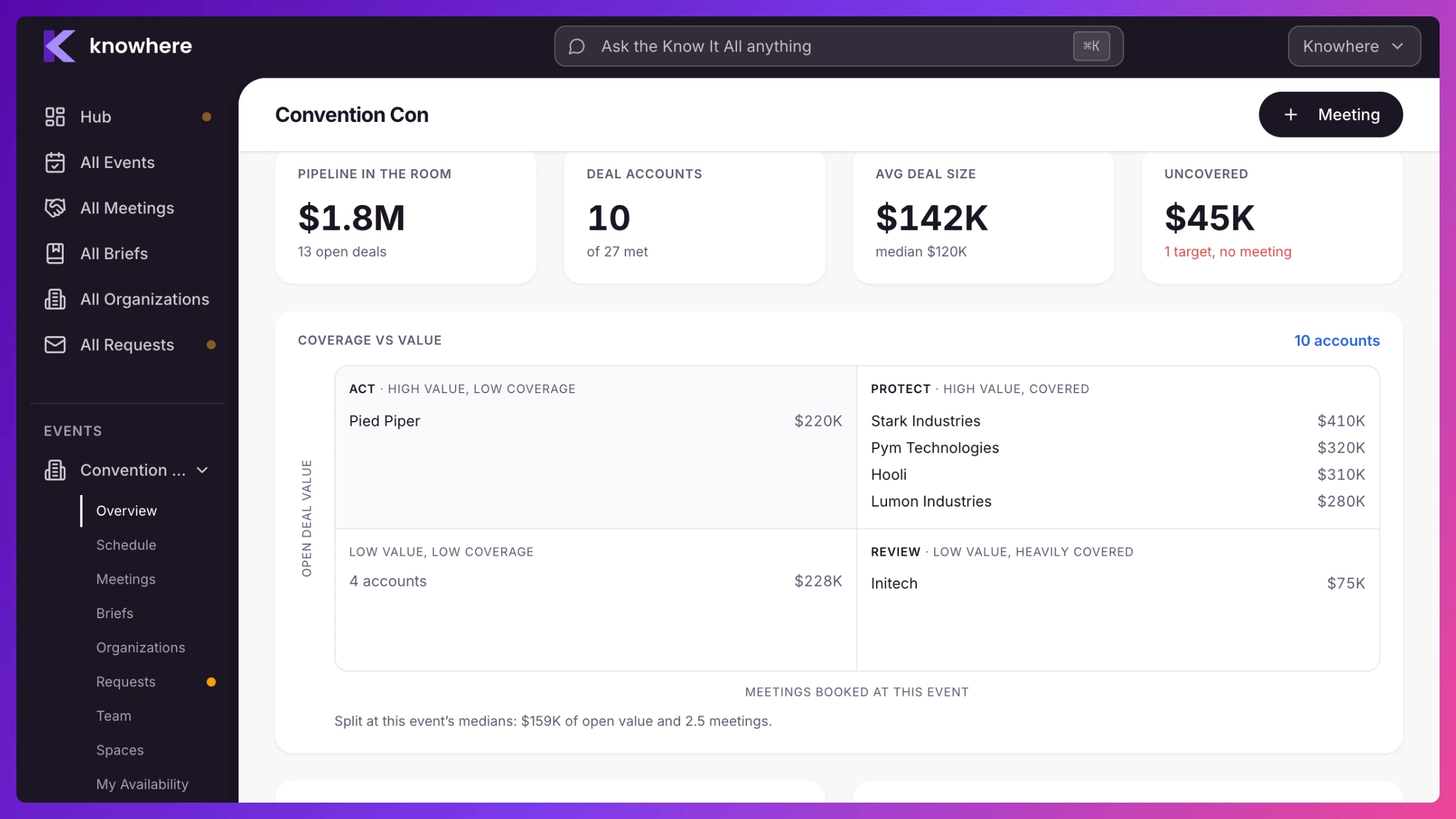
Coverage vs value. A four-quadrant grid, split at this event’s own median open deal value and median meeting count: Act (high value, low coverage, the accounts most worth booking), Protect (high value, already covered), a plain count for low-value/low-coverage accounts, and Review (low value but heavily covered, time that might be better spent elsewhere). Needs a handful of accounts with open deals before a median split means anything; with too few, it shows a placeholder instead of a misleading grid.
Stage mix. A bar showing how this event’s open pipeline breaks down by CRM stage, by value, largest first. Ordered by value, not by stage order, since stage names aren’t standardized across CRMs, so Knowhere doesn’t guess one.
Closing within 30 days. Deals on met accounts closing within 30 days after the event ends, soonest first. A deal closing soon with nobody booked to meet about it is flagged No meeting.
Accounts with a deal. A ranked list of every met account carrying an open deal, footed with a reminder that the figures are synced from your CRM, not entered in Knowhere.
Deal movement, 30 days after. What happened to this event’s deals in the 30 days following it: closed won, closed lost, changed stage, advanced, regressed, no change, or new since. Suppressed below eight deals so a small sample doesn’t read as a trend. Correlation-only language throughout: these accounts had a meeting at this event and their deals also moved; nothing here says the meeting caused it. Showing direction (advanced vs. regressed, rather than a generic “changed stage”) isn’t available yet, so every stage change currently shows as Changed stage. Events still in the future show nothing, since there’s no “after” until the event ends, and very old events can show “no deal history” rather than a real zero, since history is only recorded from the day Knowhere started tracking it.
On the Hub. The Manager Hub’s Financials section carries a Pipeline touched by event bar, ranking your events by open pipeline value touched. It’s a ranking, not a breakdown: a deal touched at more than one event counts at each of them, so the rows don’t have to sum to your total pipeline.
A known limit. Pipeline totals sum every deal’s value as a raw number, with no currency conversion. If you sell in more than one currency, treat combined totals as directional rather than exact.
How it connects
Section titled “How it connects”Organizations and contacts. Synced accounts become Organizations with their contacts attached. In the meeting form’s organization picker, suggestions are badged by where they came from: Knowhere, or Salesforce / HubSpot. An account that’s in your CRM but not yet in Knowhere shows as Not synced. Pick it and Knowhere creates it for real, right there, without leaving the meeting you’re building. Doing it twice gives you one organization, not two.
Contacts that arrive from your CRM stay out of your contact lists until they have actually been in a meeting. See the FAQ for why.
Account owners. Knowhere reads the account owner from your CRM and matches them to a Knowhere team member by email address. Matching is exact, so a rep whose CRM email and Knowhere email differ won’t be stamped as the owner. See Assign account owners.
Deals. Open deals appear on the organization, and on a meeting you can link the specific opportunity the meeting is about. Closed deals drop off the open list. This is read-only in every direction: Knowhere shows your pipeline, it never edits it. Deals also feed the Pipeline section on any event where you met the account.
Briefs. The account owner picks which deal a Brief leads with, and the Brief’s deal card shows it came from your CRM.
Meetings. A meeting pushes to your CRM once it has actually happened, with its attendees associated to the right account and contacts. Meetings in the future don’t push. Neither do cancelled meetings, or imported meetings that came in from a forwarded email invite.
Debriefs. A filed debrief becomes a note on the matching CRM record. Editing the debrief updates that note rather than adding a second one. Raw meeting notes stay in Knowhere.
Disconnecting
Section titled “Disconnecting”Disconnect on the CRM Sync page stops everything: the connection is closed, stored credentials are cleared, and anything still queued to send is dropped. After that, editing an organization in Knowhere queues nothing.
Records that already synced stay where they are, on both sides. Reconnecting to the same CRM picks the existing links back up, so you don’t get a wholesale re-import of duplicates.
Good to know
Section titled “Good to know”A few behaviors that surprise people. The full list, with what to do about each, is in the CRM Sync FAQ.
- Free-text fields (notes and descriptions) are held back from outbound writes by default. Structured debrief content still syncs.
- Sync scope shapes the first import. Ongoing pulls are not re-filtered against it, so accounts outside your original scope can appear over time.
- There is no dedicated browser for synced accounts yet. You meet them in the organization picker when you build a meeting.
- An organization you create in Knowhere is created fresh in your CRM, even if a record with the same domain is already there.
Related
Section titled “Related”- Connect your CRM
- Prepare your CRM (for your Salesforce or HubSpot admin)
- CRM Sync FAQ and troubleshooting
- Organizations, contacts & target accounts
- Meeting notes & The Debrief
- Plans & billing