How to use Know It All
Know It All is the search-and-ask button at the bottom right of every screen. Instead of clicking around, just ask. Everyone can use it, answers are scoped to what you’re allowed to see.
Ask it something
Section titled “Ask it something”- Click the round blue Know It All button at the bottom right, or press ⌘K.
- Type what you need:
- A short query searches and jumps you straight to a record (“Acme”, “Sarah’s schedule”).
- A full question gets an answer with links, for example “Who’s free Tuesday at 2pm?”, “Which targets don’t have a meeting yet?”, “Any conflicts on Thursday?”, or even “How do I add a team member?”.
- Press Enter. Answers link straight to the right screen.
Let it draft a meeting
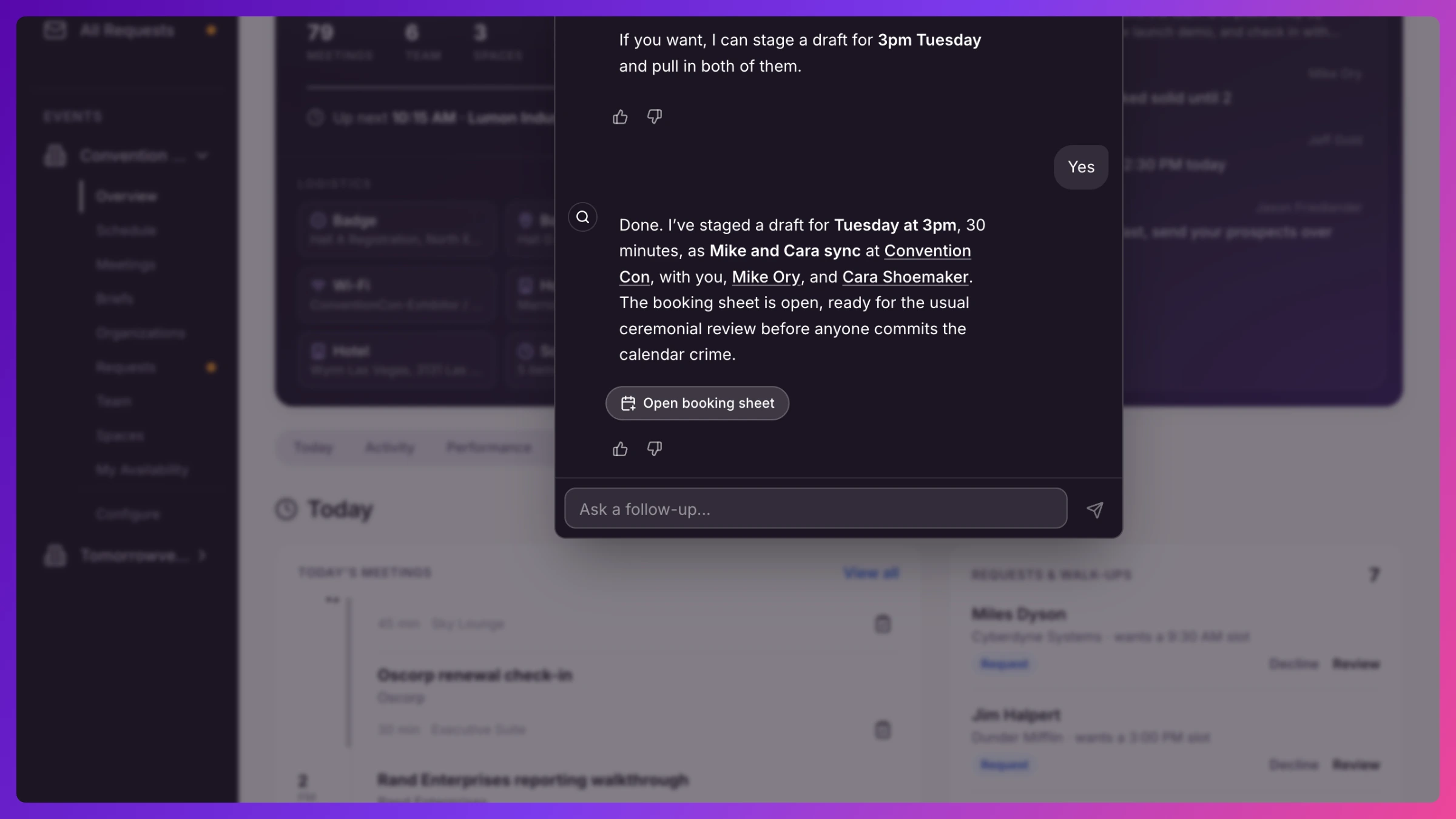
Section titled “Let it draft a meeting”Ask it to book or change something (“book Acme with Sarah tomorrow at 10 in the demo Space”) and it does the legwork, finding the contacts, checking free time, validating the Space. Then it hands you an Open booking sheet button. That opens the normal meeting form, pre-filled and conflict-checked. You review and click Save. It never books behind your back.
Tell it when it’s helpful
Section titled “Tell it when it’s helpful”Every answer has a thumbs up and thumbs down. Tapping one sends feedback that makes it better over time.
Good to know
Section titled “Good to know”Know It All is included from the Team plan. Asking across all your events at once is available on Business and up. More in Know It All.