How to set company event defaults
Set the choices new events should start from, so you’re not re-picking the same options every time. Every default can still be overridden per event, and changing a default never touches events you’ve already created. Manager task.
- Open your profile menu at the bottom of the left sidebar, go to Settings, then Company, then the Defaults tab.
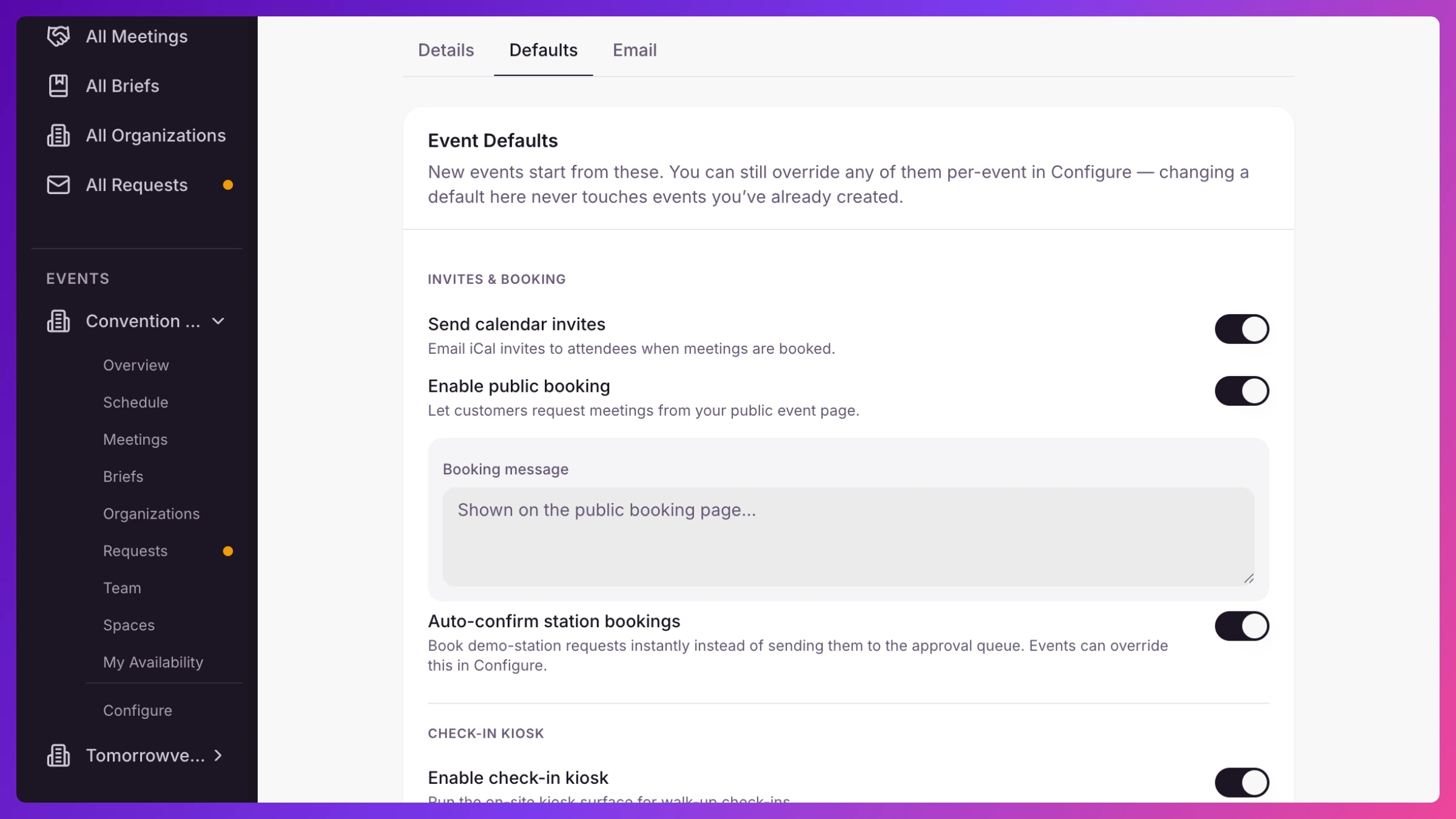
- Set the defaults you want, grouped by area:
- Invites & booking. Turn on Send calendar invites, Enable public booking (with a default Booking message), and Auto-confirm station bookings.
- Check-in kiosk. Turn on Enable check-in kiosk and set the default Welcome heading, Call-to-action text, and Success message.
- Briefing. The Auto-publish briefing books toggle sets your preference now; automatic publishing itself is coming soon.
- Schedule. Set Day starts, Day ends, a Default meeting duration, and optional Duration by meeting type (prefills the duration when a manager picks that type).
- Click Save.
What’s next
Section titled “What’s next”Create your next event and it starts from these. To change something for one event, use that event’s Settings. See Create an event.