How to add notes and generate a Summary
Notes capture what happened in a meeting. The Summary rolls those notes into a clean write-up you can paste into your CRM. Anyone on the meeting can add notes. Generating a Summary is a manager action on higher plans.
Add a note
Section titled “Add a note”- Open the meeting and scroll to the Notes section.
- Click the Add Note box at the bottom and type what happened.
- To notify a teammate, type
@and their name. They get an email. - Click Add Note. Your note appears at the top with your name and a timestamp. Hover a note to reveal the pencil (edit) and trash (delete) icons on your own notes.
What happens on its own Business & up
Section titled “What happens on its own Business & up”Once the meeting has ended, saving a note also triggers the automatic extraction: commitments become tracked follow-ups, and the meeting earns a substance grade (Concrete, Directional, or Fluff) that shows up on the event’s Meetings list and in Sales Inference. No button. Write down what happened, including who owes what by when, and the bookkeeping does itself.
Generate a Summary Business & up
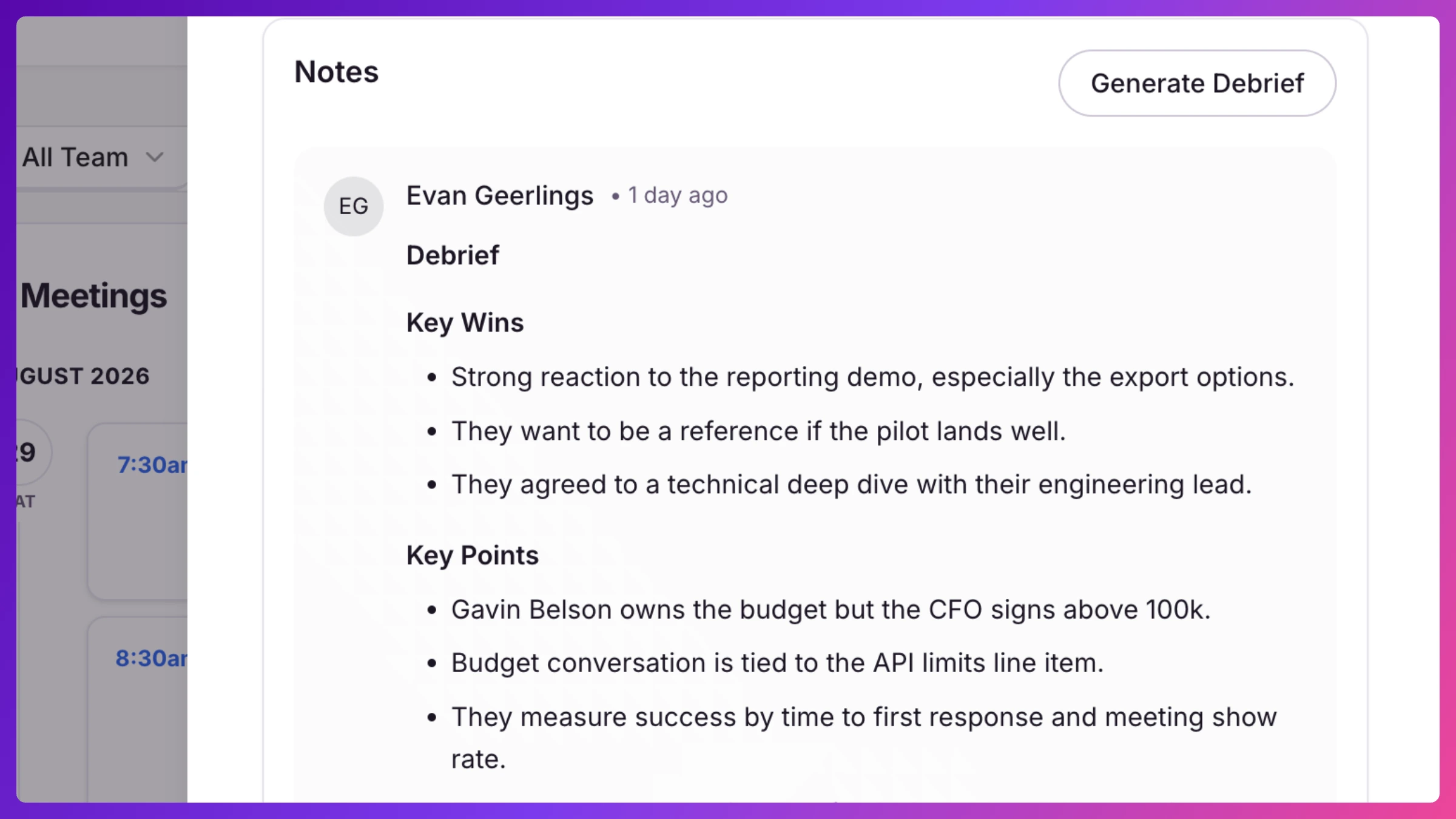
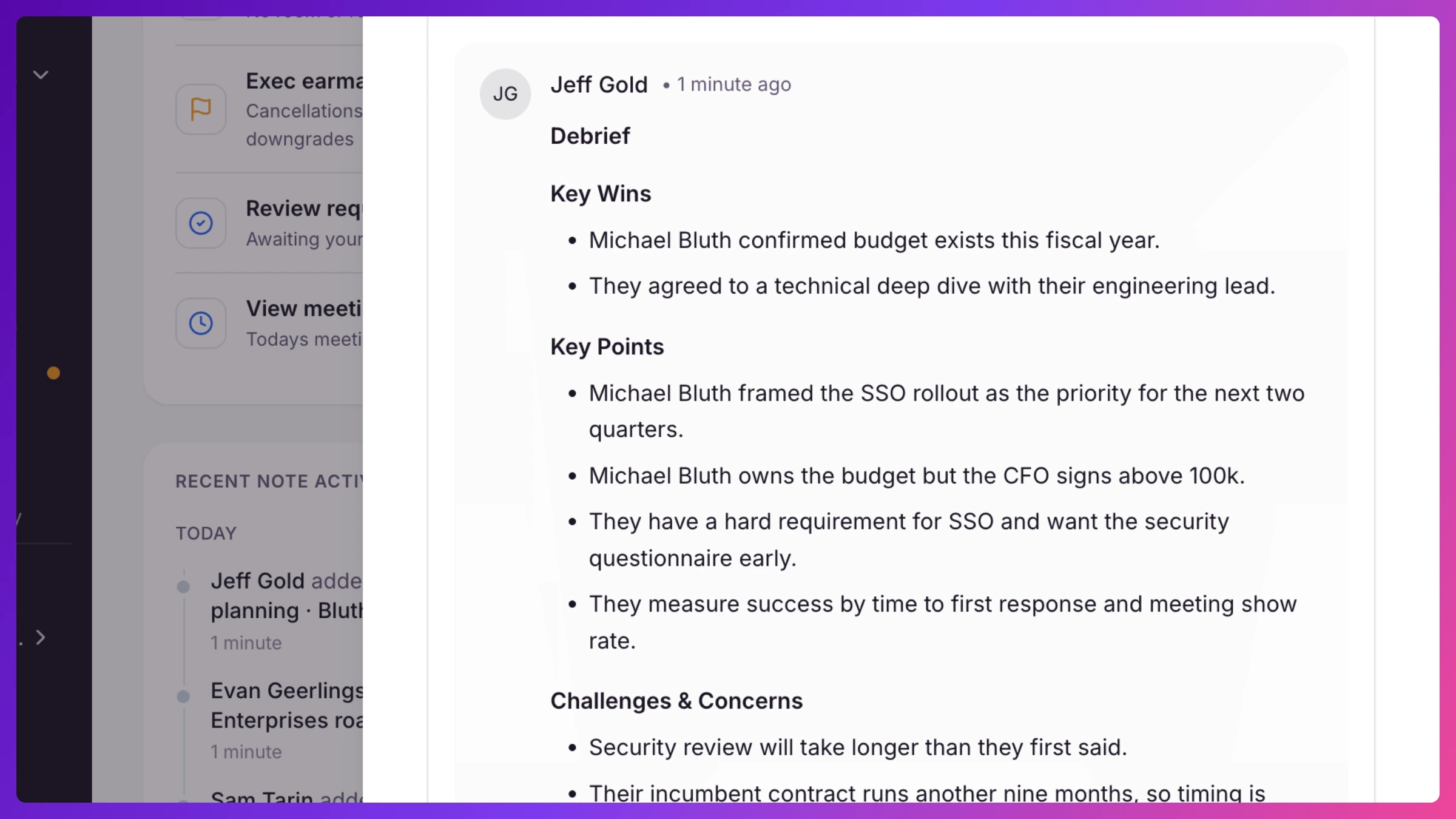
Section titled “Generate a Summary Business & up”- In the same Notes section, once the meeting has at least one note, click Generate Summary in the top-right (managers only).
- Knowhere reads the notes and adds a structured write-up (Key Wins, Key Points, Challenges & Concerns, Recommended Follow-ups) as a read-only entry.
- Copy it with one click and paste it into your CRM, a follow-up email, or a pipeline review. Generating again replaces it with a fresh summary of the current notes.
What’s next
Section titled “What’s next”Summaries show up in the recent History on Overview and in each account’s history, and your Follow-ups inbox flags loose ends from your meetings. See Meeting notes & Summary.