Conflict detection & availability
Knowhere’s scheduling engine exists to answer one question before it becomes a problem at the booth: can this meeting actually happen? It checks every proposed meeting against your team’s real availability and warns you the moment something collides.
Who it’s for: everyone. It runs wherever meetings are created or moved. Managers see conflicts across the whole team, and team members protect their own time by keeping their availability current.
What counts as a conflict
Section titled “What counts as a conflict”When you create or edit a meeting, Knowhere checks the proposed time against:
- Double-booked people: a team attendee is already in another meeting that overlaps.
- Double-booked Spaces: the physical Space is already taken. This runs even when nobody from your team is on the meeting, a customer-only meeting can still double-book its Space. Two kinds of Space are deliberately exempt: virtual Spaces (Zoom, Teams), and any Space with Allow concurrent meetings turned on, a setting for one big Space that legitimately hosts several conversations at once, like an open booth floor. Overlaps in a concurrent Space are never flagged and its capacity isn’t enforced, but a person double-booked across its meetings still is.
- Space capacity: more attendees than the Space holds.
- Personal availability: the time falls in a slot the person marked unavailable.
- Arrival and departure: the meeting is before someone lands or after they leave. (“Arrives Tuesday” on a Monday meeting.)
- Personal Time: the slot collides with someone’s travel, lunch, or break block.
- Blocked external time: the slot collides with a calendar block imported from someone’s outside calendar (see below).
Warn, don’t block
Section titled “Warn, don’t block”Conflicts are advisory: event scheduling is messy, and sometimes the double-book is intentional. When a conflict is found, Knowhere shows exactly who and what collides, suggests alternative open times, and lets you either fix the time or keep it. If you keep it, the meeting is saved as normal and the clash stays flagged on it until someone sorts it out.
The one hard stop is Space capacity: Knowhere won’t book 12 people into a 6-person Space. (A concurrent Space opts out of that check too, it’s built for crowds.)
Where conflicts surface
Section titled “Where conflicts surface”Conflicts look and behave the same everywhere, and every conflict surface is something you can act from, not just a warning label:
- While you’re composing a meeting: the add/edit form checks availability live as you pick times and attendees. The alert names exactly who is busy and which Space is taken, and offers suggested times you can apply with one click.
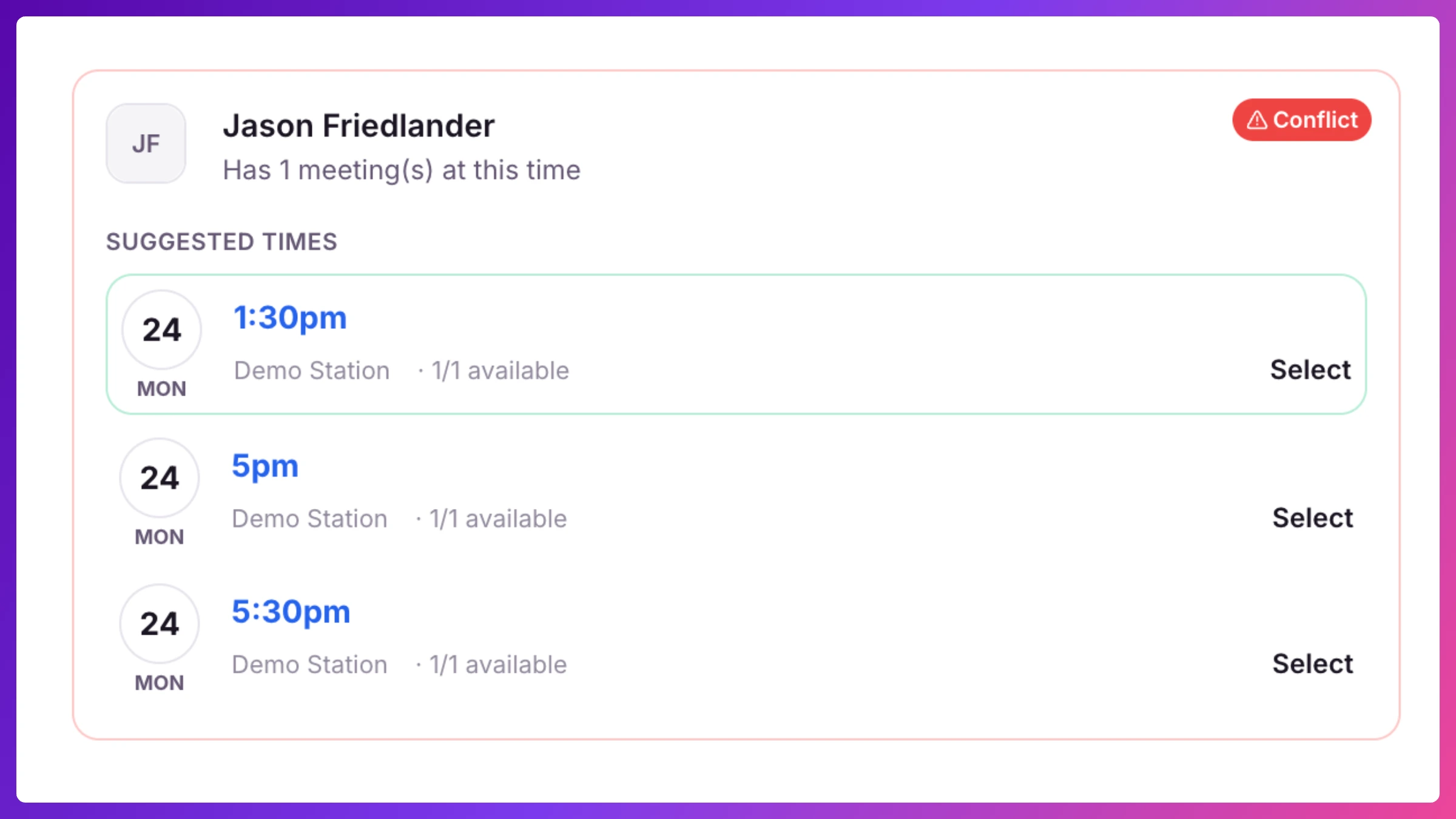
- When you save anyway: there is no pop-up. The main button reads Book anyway while a conflict remains, and the meeting saves and stays confirmed. Capacity is the exception, which has no override.
- On the meeting itself: the When row shows a red line naming what collides, with Find a time and Keep this time next to it.
- On meeting lists: conflicted meetings carry a red Conflict tag, the event’s Meetings view counts them, and you can filter the list to conflicts only.
- Ask the Know It All: “any conflicts on Thursday?” gets you the day’s collisions in chat.
The same engine backs the request queue. If you approve a guest’s reschedule request from the event’s Requests tab into a slot that’s since been taken, Knowhere doesn’t bounce you with an error: it opens the meeting’s edit form pre-filled at the guest’s proposed time, with the conflict named, so you pick a nearby time and save. Moving the meeting and closing the request happen in one step, a counter-offer instead of a rejection.
Setting availability
Section titled “Setting availability”Each team member controls their own availability per show from Availability: set your arrival and departure dates, then fine-tune with a per-day time-slot grid for anything else (early flights, dinners, booth shifts). Managers set their own availability the same way from the same page.
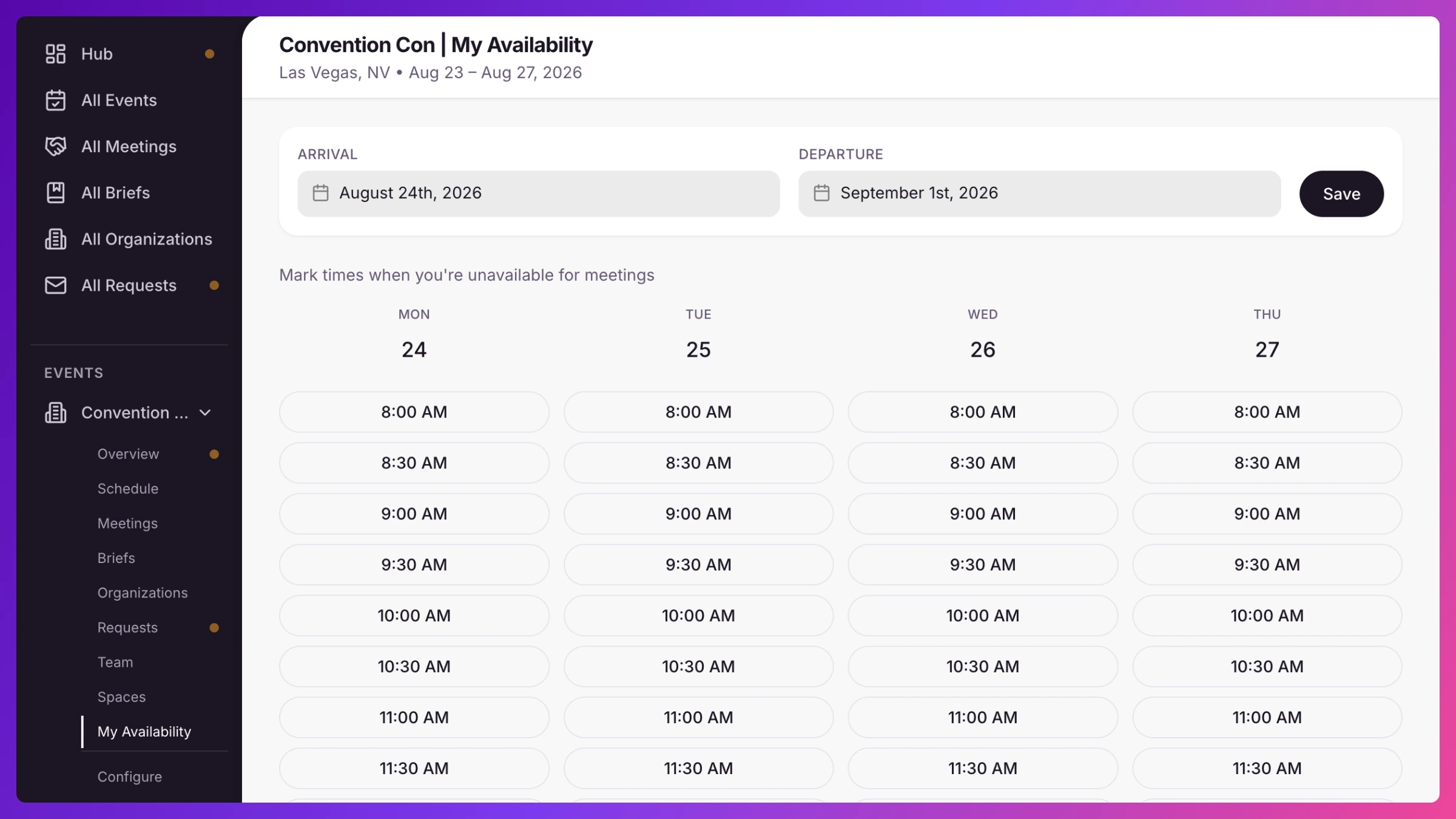
Everything downstream respects it: manager scheduling, conflict checks, and your public booking pages.
Public booking and availability
Section titled “Public booking and availability”A team member’s personal booking page offers time slots computed from the event’s operating hours, their arrival/departure window, their marked-unavailable slots, and their real busy time, where meetings you’ve saved as a Hold count too, so a slot you’re reserving for one customer is never offered to another. Demo-station grids block booked and held times the same way. The event-wide booking page offers your operating hours and leans on the approval step instead: every incoming request gets a full conflict check when a manager reviews it, on the same conflict-aware form used for any meeting, so a request that collides with something booked in the meantime is caught before it lands on the schedule.
Blocking time from your outside calendar
Section titled “Blocking time from your outside calendar”Life doesn’t stop for the event: internal syncs, investor dinners, flights. To keep those from being booked over, forward the calendar invite (from Google Calendar, Outlook, or Apple Calendar) to add@cal.goknowhere.com. Knowhere reads the invite and blocks that time on your availability:
- The block is private busy time: it shows on your own Today timeline with an “External” tag, and scheduling treats you as busy, but it never appears as a meeting on the event schedule.
- Forwarding an updated invite updates the block. Forwarding a cancellation frees the time.
- You can delete a block yourself from your timeline.
- Each forwarded invite blocks a single occurrence. Recurring series aren’t expanded, so forward the specific occurrences that matter.
- If the forwarded invite lands inside one of your events, it shows up there as a read-only imported meeting instead of a private block. And when Knowhere can’t tell which event it belongs to, the time is still blocked right away while the invite waits in Imports to review, as a row in Requests. More in Meetings & calendar invites.
How to
Section titled “How to”Step-by-step, with the exact clicks: