How to edit, cancel, or delete a meeting
Change a meeting’s details, call it off but keep the record, or remove it entirely. Knowhere keeps everyone’s calendars in sync either way. Managers can change any meeting, team members their own.
Edit a meeting
Section titled “Edit a meeting”- Open the meeting and click Edit in the action bar at the top.
- Change whatever you need, the time, Space, attendees, notes, or status. Availability is re-checked as you go.
- Click Save Changes. If calendar invites already went out, attendees get an updated invite.
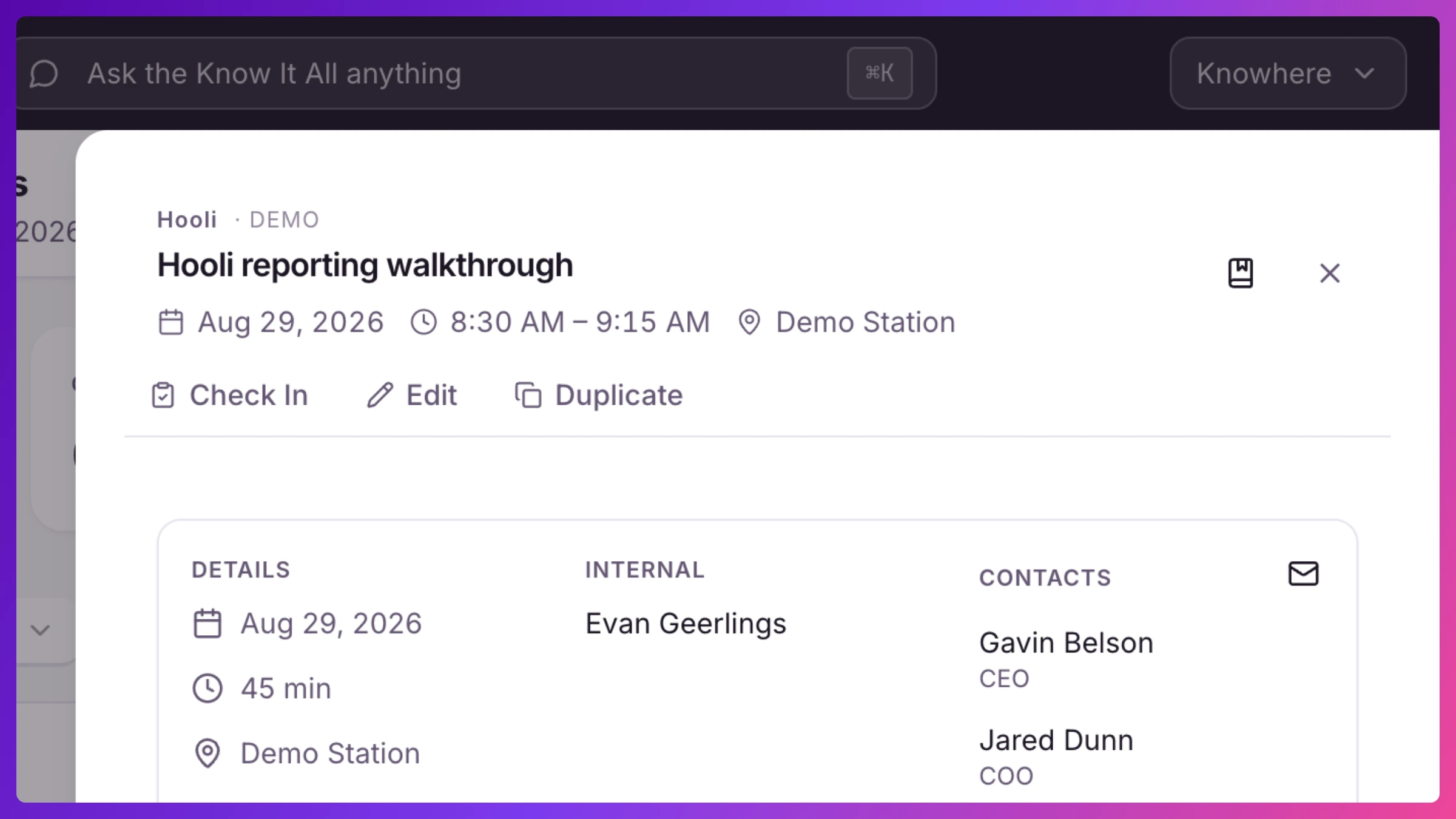
Two status changes worth knowing: flipping a Hold to Confirmed is the moment its invites finally go out, and editing a meeting’s time yourself closes any pending reschedule request from a guest, your edit is the answer.
Duplicate a meeting
Section titled “Duplicate a meeting”In the same action bar, click Duplicate. Knowhere opens a new meeting pre-filled with everything from the original (customer, contacts, team, Space, type, duration, notes). Pick a new date and time and click Create Meeting. The original is untouched.
Cancel vs. delete
Section titled “Cancel vs. delete”- Cancel keeps the meeting on the record but marks it off. In Edit, set Status to Cancelled and Save Changes. If invites went out, Knowhere asks: Mark cancelled and notify attendees (sends a cancellation) or Mark cancelled without notifying. Cancelled meetings drop off the timeline and stop counting against anyone’s availability.
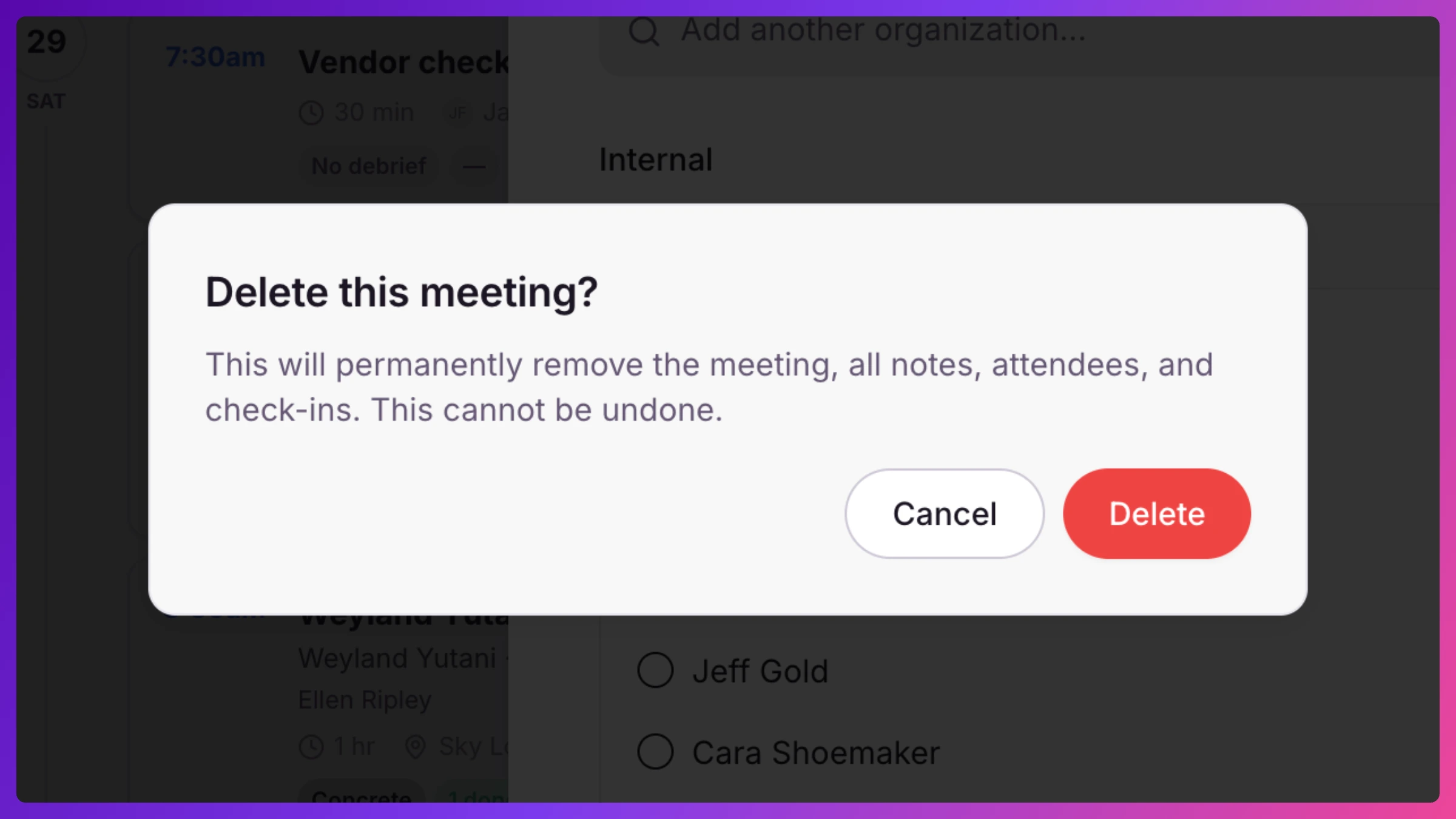
- Delete removes the meeting and its notes and attendance entirely. In Edit, click the red Delete button in the footer. If invites went out, Knowhere offers to Delete and notify attendees or Delete without notifying.
Use Cancel when the meeting was real but isn’t happening. Use Delete only when it should never have existed.
What’s next
Section titled “What’s next”For the invite and RSVP behavior behind all of this, see Meetings & calendar invites.