How to hold a meeting slot
A Hold reserves a time before the customer has agreed to it: the Space and your team’s time are protected, the slot vanishes from the team member’s personal booking page and any demo-station grid, and nobody gets an email until you confirm. Manager task (team members can hold their own meetings too).
- Create the meeting as usual, or open an existing one and click Edit.
- In the Status dropdown, pick Hold.
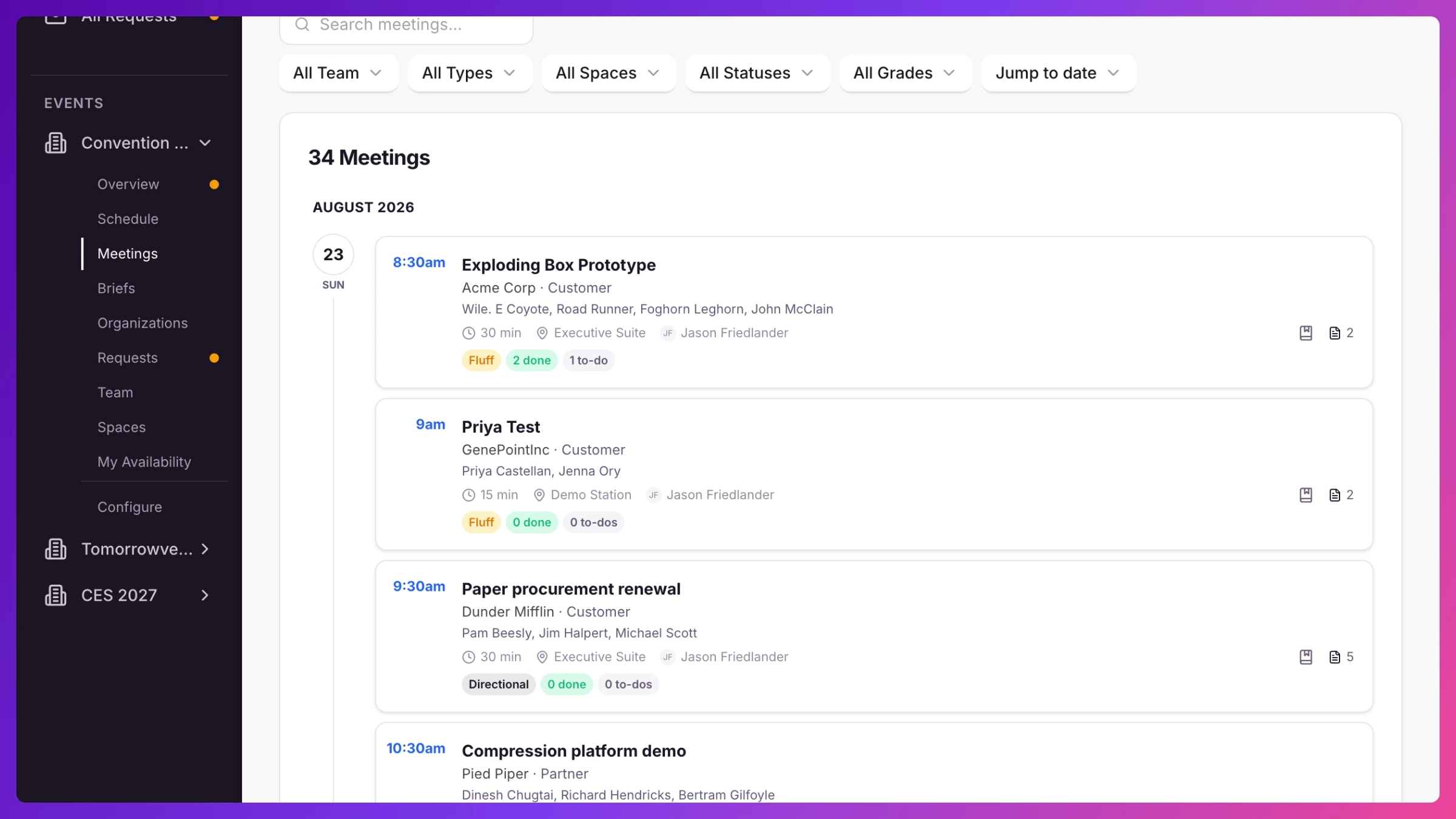
- Save. The meeting sits on your schedule with an outlined Hold badge. No calendar invites are sent.
Confirm it later
Section titled “Confirm it later”- Open the held meeting and click Edit.
- Change Status to Confirmed and save.
- The calendar invites go out now, first-time invites if the meeting never had them, updates if it did.
Good to know
Section titled “Good to know”- A held slot behaves like a booked one where it matters: conflict detection counts it, and personal booking pages and demo stations never offer the time to someone else. (The event-wide booking page offers your operating hours; anything a visitor requests there still passes the conflict check at approval.)
- If the customer passes, set the status to Cancelled (nothing was ever sent, so there’s nothing to retract) or delete the meeting.
- Holding is for “we’re waiting on their yes.” A meeting booked over a known clash is just Confirmed: Knowhere shows the clash on the meeting and sends invites as usual. More in Meetings & calendar invites.