Team & availability
Your team is who makes an event happen, so Knowhere gives managers one place to bring people on, decide what they can do, staff them onto events, and keep everyone’s real availability accurate so nobody gets double-booked. Team members manage their own availability from a single screen.
Who it’s for: managers own the roster and assignments. Team members manage their own availability and see only their own schedule.
Adding teammates
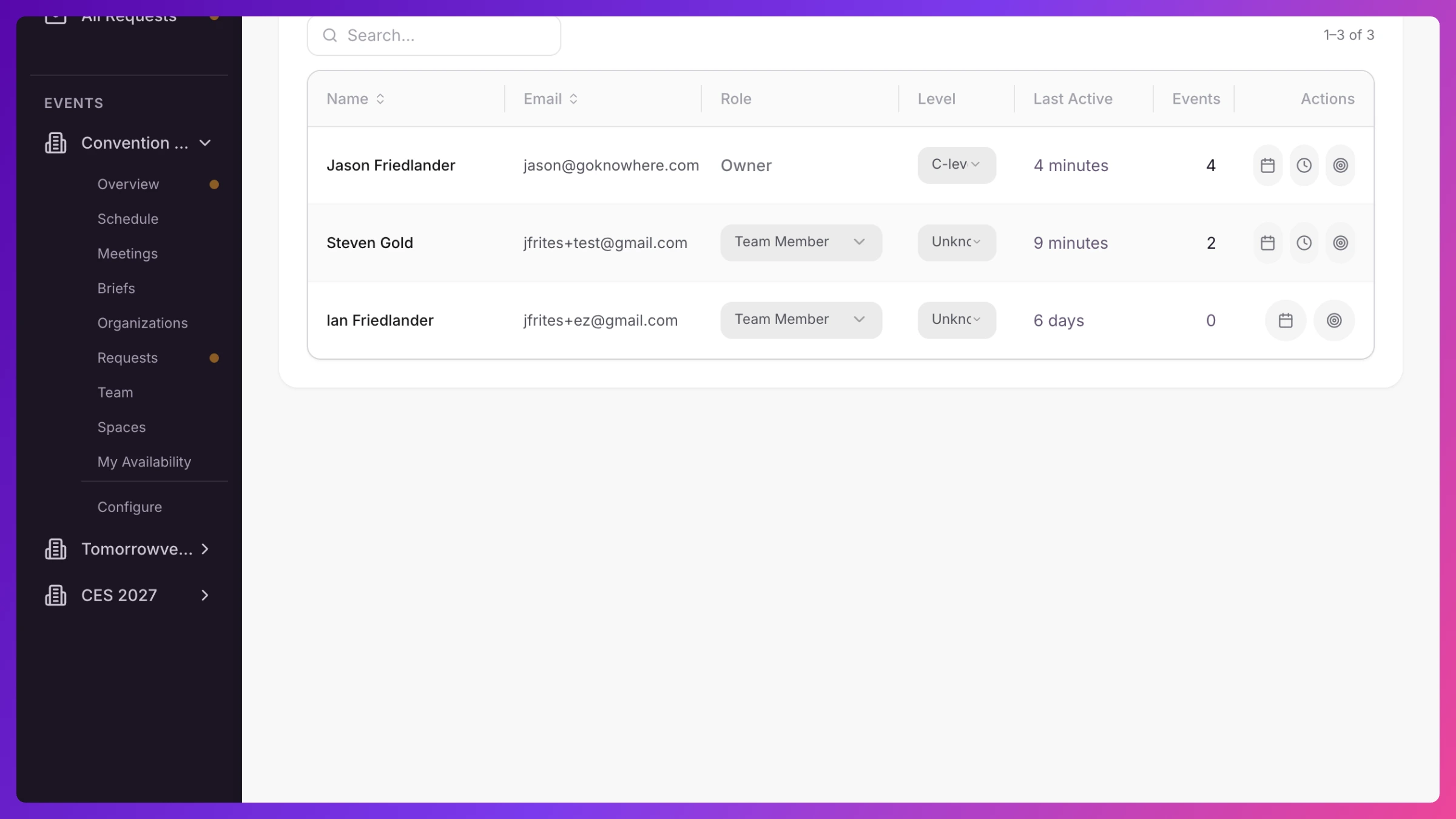
Section titled “Adding teammates”Invite people from Settings → Team. Click + Team Member, enter their full name and email, and pick a role:
- Team Member can view the events they’re staffed on and manage their own meetings.
- Manager can edit events, meetings, and team settings.
Click Send Invite and Knowhere emails a magic link. The person clicks it to join and set a password. Until they finish, they sit in the Pending Invitations tab, where Invitations sent can be resent or cancelled and Awaiting confirmation covers people who accepted but haven’t finished setting up. Team, Pending Invitations, and Archived each show a live count.
Your plan sets how many seats you have, and pending invitations count toward the limit so a sent invite always has a seat waiting. When you’re full, the invite button opens your plan limits with the option to add a seat. See Plans & billing for how seats and add-ons work.
Roles and changes
Section titled “Roles and changes”Change someone’s role from the Team Members tab using the role dropdown. It saves immediately. Two guardrails. The company owner’s role can’t be changed (they carry an Owner badge), and you can’t change your own role.
Staffing an event
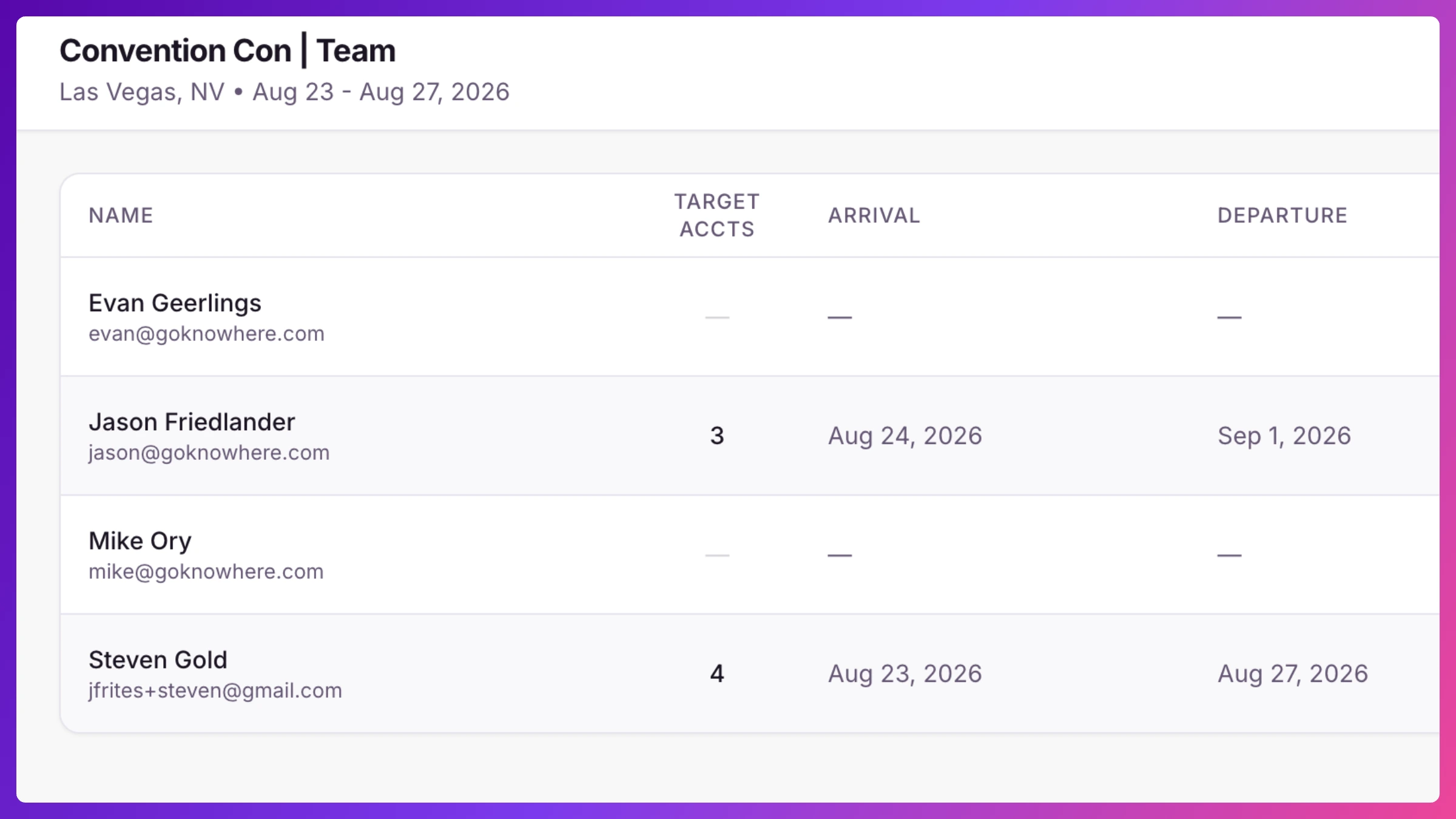
Section titled “Staffing an event”Assigning people to a specific event happens on the event’s Team tab. Click Add Team Member to pull someone from the company roster onto this event. They’re emailed right away with the event’s dates and location and a link straight into their setup — no separate step for you. The event roster then shows each person with:
- Targets assigned to them for this event.
- Arrival and departure dates (optional, and held within the event’s date range) so scheduling knows when each team member is actually on site.
- A Copy Link button for their personal booking page, when public booking is on for the event.
Open a member’s row and click Edit to adjust their travel dates, then Save Changes.
Availability
Section titled “Availability”Availability keeps the schedule honest, nobody can be booked when they’re not there.
- Team members set their own from Availability: for the picked show, they set their arrival and departure dates and can open Manage time slot availability to block specific times within that window (early flights, dinners, booth shifts).
- Managers can set it for someone from the Team Members tab (Manage Availability): a calendar to mark unavailable dates, with a warning when those dates collide with events the person is staffed on.
Everything downstream respects it: manager scheduling, conflict detection, and public booking pages all steer around time that isn’t really free.
Assigning account ownership
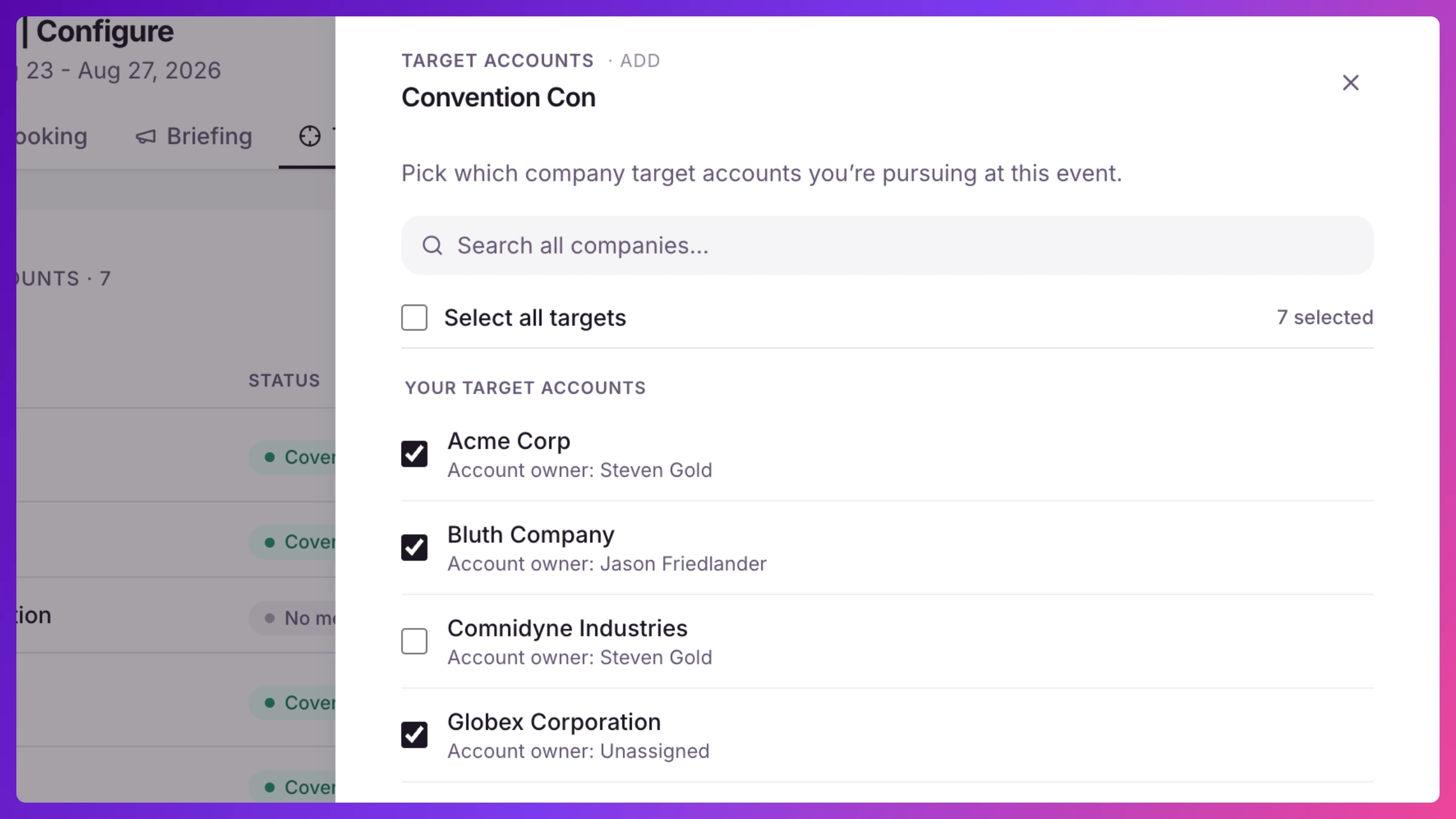
Section titled “Assigning account ownership”From a member’s row, Assign targets opens a searchable list of your organizations. Check the accounts to make that team member their owner. Accounts already owned by someone else are shown but locked, so ownership never silently changes hands. You assign one team member at a time, and can give a single team member many accounts at once. Ownership drives coverage tracking and Brief access, see Organizations & targets.
Archiving and removing
Section titled “Archiving and removing”When someone leaves the team you have two options from their profile:
- Archive moves them off the active roster but keeps all their history (meetings, notes). They can be reactivated later from the Archived tab. Archiving does not free a seat.
- Remove from company takes them off permanently and unassigns them from every event and meeting. This frees a seat and can’t be undone (their login still exists and can join other companies).
How it connects
Section titled “How it connects”- Availability feeds scheduling and booking. Arrival/departure and blocked slots flow into conflict detection and into what times your public booking pages offer.
- Ownership feeds coverage. Assigned accounts drive the Engagement Scoreboard and who can see and publish each account’s Brief.
- Seats tie to your plan. The roster size is governed by your subscription. Managers manage it from Settings.
How to
Section titled “How to”Step-by-step, with the exact clicks: