How to check people in
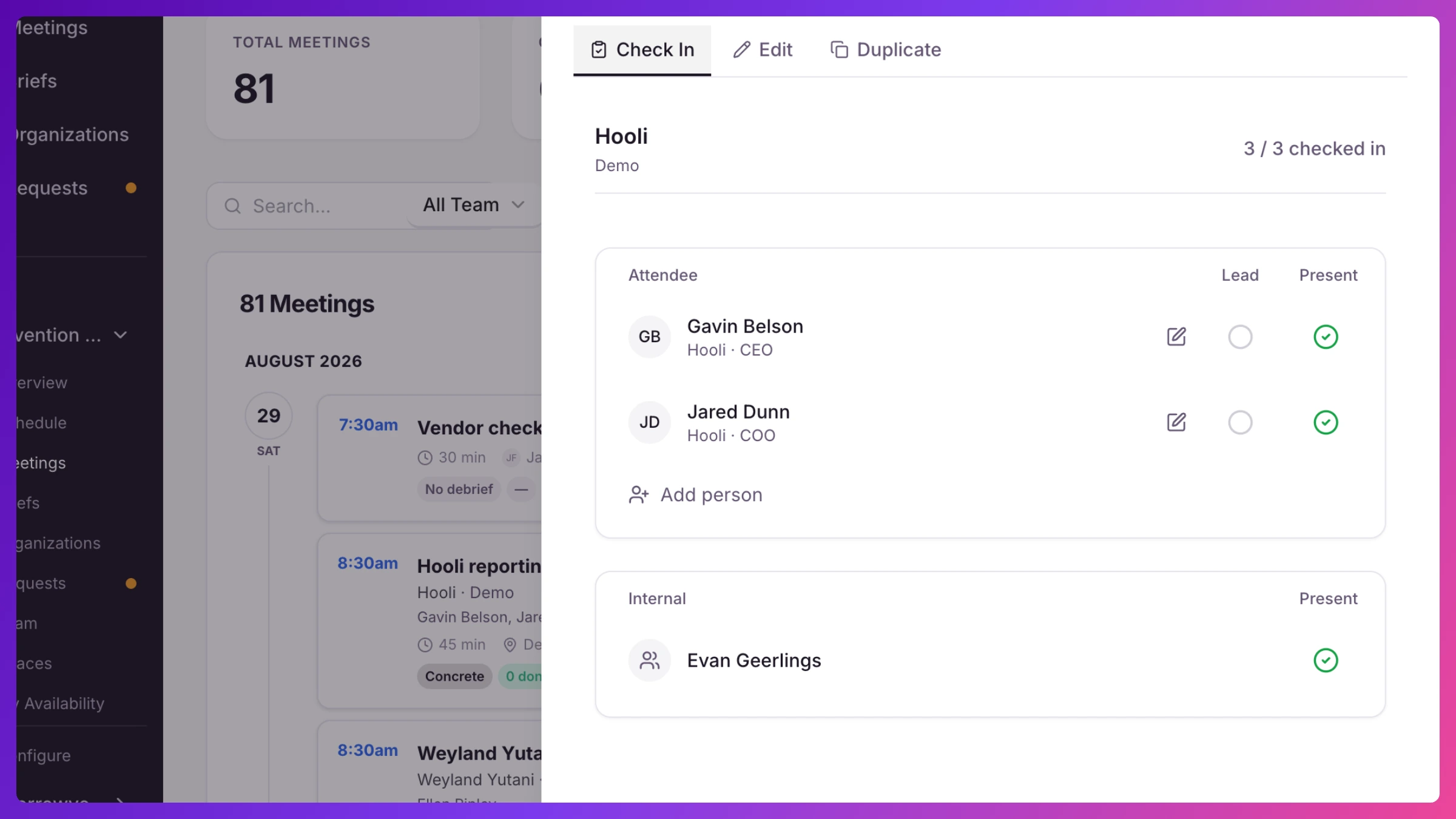
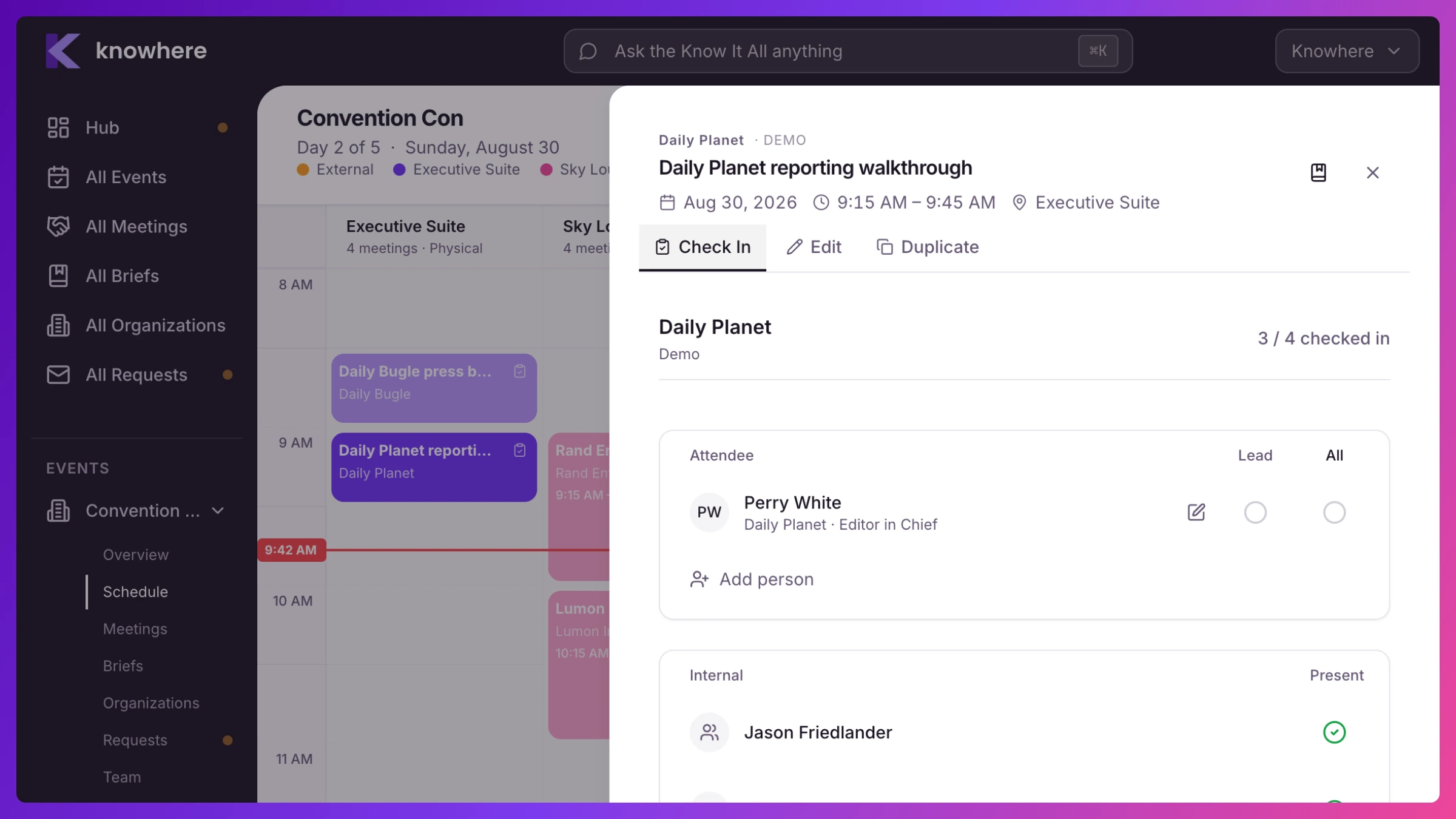
Check-in records who actually showed up, turning your schedule into an attendance record. You can check people in from the meeting itself, and attendees can self-check-in at the kiosk. Manager task (from the meeting).
Check in from the meeting
Section titled “Check in from the meeting”- Open the meeting (from Meetings, the schedule, or Overview). On the day of the meeting, the People card shows each person with a status on the right. Before the day it only shows their RSVP.
- Click Check in next to each person who showed up. Open the status menu instead if you need a different attendance state.
- Optional: open the … menu on a customer contact and choose Mark as lead to flag them for follow-up.
- Someone showed up who wasn’t on the list? Click Add contact to register a walk-in (name, title, company, email, and you can mark them as a lead).
- To check everyone in at once, click Check in all.
- Your team members are in the same card and work the same way.
When every expected attendee is checked in, Knowhere records the attendance summary automatically (who attended, walk-ins, and no-shows).
Self-check-in at the kiosk
Section titled “Self-check-in at the kiosk”At the booth, an attendee enters the six-character code from their calendar invite, picks their name, and confirms. Set the kiosk up first with Launch the check-in kiosk.
What’s next
Section titled “What’s next”Attendance feeds your follow-ups, your lead counts, and each account’s history. See Check-in & the kiosk.