Knowhere Product Documentation
Draft for review, written from the current product, July 2026.
Know Where. Know Who. Know Why.
Section titled “Know Where. Know Who. Know Why.”You run your team’s presence at an event. Booth coverage, customer meetings, executive schedules, demo stations, Space changes. That is a coordination layer, and calendar tools were never built for it. The spreadsheet goes stale by day two.
Knowhere manages the intersection of people, meetings, spaces, and schedules in one live system. One team member gets double-booked, a target never gets a meeting, a customer waits at the booth with nobody expecting them. Change one fact and everyone knows where to go. Built for the team going to the show. Not the team running it.
Three ways in
Section titled “Three ways in”There are three paths through these docs. Use whichever fits how you think.
- By the event lifecycle. Follow the arc of a show through Before the show, During the show, and After the show. Best when you want to understand why each piece matters and when you’d reach for it.
- By feature. Go straight to a capability in the Features sidebar group, or the deep-dive list below. Best when you already know what you’re looking for.
- By task. Need to do one specific thing right now? The How-to guides walk you through it click by click, from creating an event to launching the kiosk.
Most of Knowhere works the same on every plan. Where something needs a higher plan you’ll see a badge, like Business & up or Enterprise. The full breakdown is on Plans & billing.
Core concepts
Section titled “Core concepts”Everything in Knowhere hangs off a handful of building blocks. Learn these nine terms and the rest of the product explains itself.
- Events: Each conference, trade show, or summit you attend. An event holds its dates, timezone, location, meeting spaces, staffed team, and every meeting that happens there.
- Spaces: The places meetings happen, a booth meeting room, a rented suite, or a virtual room like Zoom. Your schedule is laid out space-by-space, so you always know what’s free.
- Meetings: The heart of Knowhere. A meeting has a time, a space, your team attendees, the customer attendees, and notes. Check-in captures what actually happened.
- Requests: Inbound asks for meeting time from your public booking page, a team member’s personal link, or a walk-up at the kiosk. Requests wait in a queue until a manager approves or declines them.
- Organizations & Targets: The customer companies you meet with, and the contacts inside them. Mark an organization as a target and Knowhere tracks whether it actually got meeting time.
- Briefs: Per-account prep documents for an event. Objectives, talking points, deal context, and history. Drafted by managers, published to the team, ready before the handshake.
- Availability & Personal Time: Every team member’s free/busy time at an event, including Personal Time blocks for travel, lunch, and breaks. Scheduling steers around the time that’s really free.
- Check-in & Walk-ins: Day-of attendance. Attendees check in at a self-service kiosk. Unexpected visitors register as walk-ins and can be attached to meetings or turned into requests.
- Know It All: Knowhere’s built-in AI event search. Ask it anything about your schedule, people, spaces, or accounts in plain English. It answers instantly and links you to the right screen.
Go deeper
Section titled “Go deeper”Feature-by-feature detail lives in the deep-dive pages:
- Meetings & calendar invites
- Conflict detection & availability
- Team & availability
- Requests & public booking
- Check-in, walk-ins & the kiosk
- Organizations, contacts & targets
- Event financials & ROI
- Briefs
- Meeting notes & Summary
- Recap questions
- Sales Inference
- Know It All
- CRM Sync
- Plans & billing
- Every screen in Knowhere
For managers
Section titled “For managers”Managers see the whole picture, every event, every meeting, every request, and every account across the company. Your home base is Overview, a live overview of today’s meetings, recent activity, and anything that needs your attention.

Set up an event in six steps
Section titled “Set up an event in six steps”Creating an event walks you through a short setup wizard. Ten minutes of setup is what makes the rest of the event run itself. Every step past Details is skippable, and new events start from your company-wide defaults (Settings → Company → Event Defaults), so most of it is confirm-and-go.
- Details: Name the event, set its dates, timezone, and location.
- Spaces: Add your meeting Spaces, physical or virtual, with capacity and location hints so team members can find them. For booth demos, mark a Space as a bookable demo station with a topic and slot length.
- Team: Staff the event. Assigned team members are notified by email and immediately see the event on their own Overview.
- Targets: Pick this event’s targets. Your company targets come pre-checked. Adjust the list for this event.
- Hours: Set the event’s operating hours so meetings only get booked when your team is actually on site.
- Share: Turn on public booking to get a shareable link (and an embeddable widget for your website) where customers can request meetings, no login required. Events with demo stations also get a Book a demo mode here.
Run the schedule
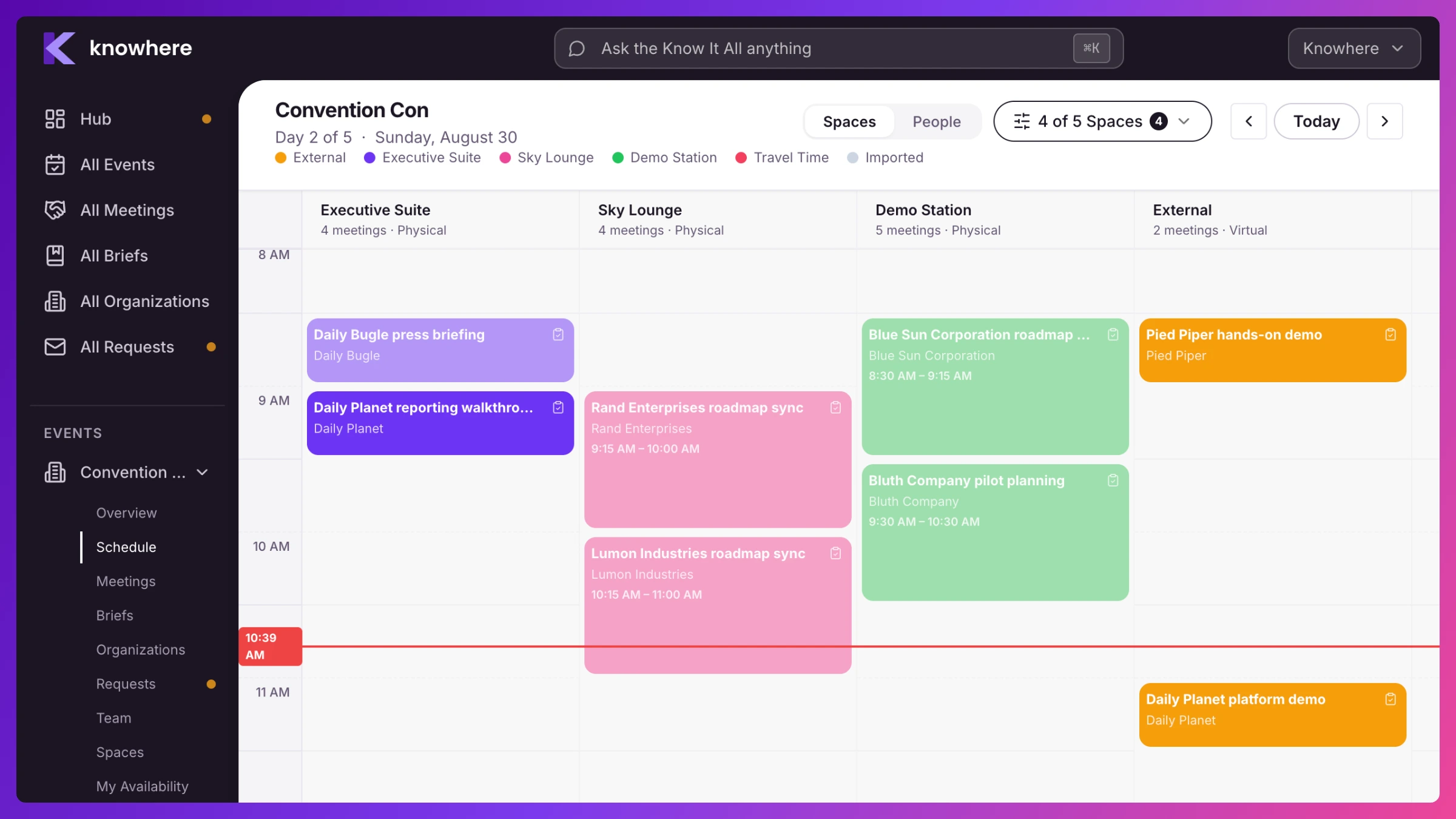
Section titled “Run the schedule”The Schedule view lays out every meeting across spaces and time, a live grid with a “now” line, filters, and a day scrubber. Knowhere flags conflicts automatically. A team member who’s double-booked, busy from their own calendar, or booked outside their availability shows up before the problem does.
Create and edit meetings from anywhere in the app. Set the time, space, internal attendees, and customer attendees, add notes, repeat it across multiple days if needed. When calendar invites are enabled, customers automatically receive a real calendar invite with an RSVP link, and updates or cancellations keep their calendars in sync.
Work the request queue
Section titled “Work the request queue”Everything customers submit from your public booking page, a team member’s personal link, or the kiosk lands in Requests. Review the details, check the requested team member’s availability, and approve to create the meeting in one step, or decline with a note. Requesters are notified by email either way.
Track target coverage
Section titled “Track target coverage”Load in the organizations you care about and mark your targets. The Engagement Scoreboard shows which accounts have meetings booked, who owns each relationship, and, most importantly, which targets still have no meeting scheduled while there’s still time to fix it.
For each key account, build a Brief with objectives, next steps, talking points, and deal context, alongside the account’s meeting history. Publish it and every team member walks in prepared.
Measure what the meetings produced Business & up
Section titled “Measure what the meetings produced Business & up”Booking the meeting is half the job. Sales Inference, in the show’s Signals, grades what the meetings actually produced: which Tier 1 targets got an executive in the room, how many meetings earned a Concrete substance grade from their notes, whether the commitments your team made are getting done, and where the customer’s side out-ranked yours. Nothing is hand-entered; save your meeting notes and the numbers follow. More in Sales Inference.
Run the day
Section titled “Run the day”On event day, the Overview becomes your command center, a live queue of who’s checked in, today’s meetings as they happen, and costs against attributed revenue. Turn on the kiosk to give attendees a self-service check-in screen at your booth. Walk-ins register themselves and appear in your queue, ready to be attached to a meeting or converted into a request. Recent Activity on the Overview is where changes land as they happen: RSVP answers, request approvals, notes, and check-ins, each linking to the meeting behind it.
Team and billing. Invite teammates by email from Settings. They join as managers or team members, and their role decides what they see. Your subscription, plan limits, and add-ons are managed from the billing portal in Settings.
For team members
Section titled “For team members”Team members get a focused view of exactly what matters to them, their events, their meetings, their availability, and their accounts. No noise from the rest of the company’s calendar.
Team members see the same pages as managers, under the same names, with the same look. The difference is what’s in them: only your shows, your meetings, and your requests.
- Overview: Your landing page. Today’s agenda and anything that needs action from you, all in one glance. On a phone it’s your Schedule, with Status and Notes one tap away in the bottom bar.
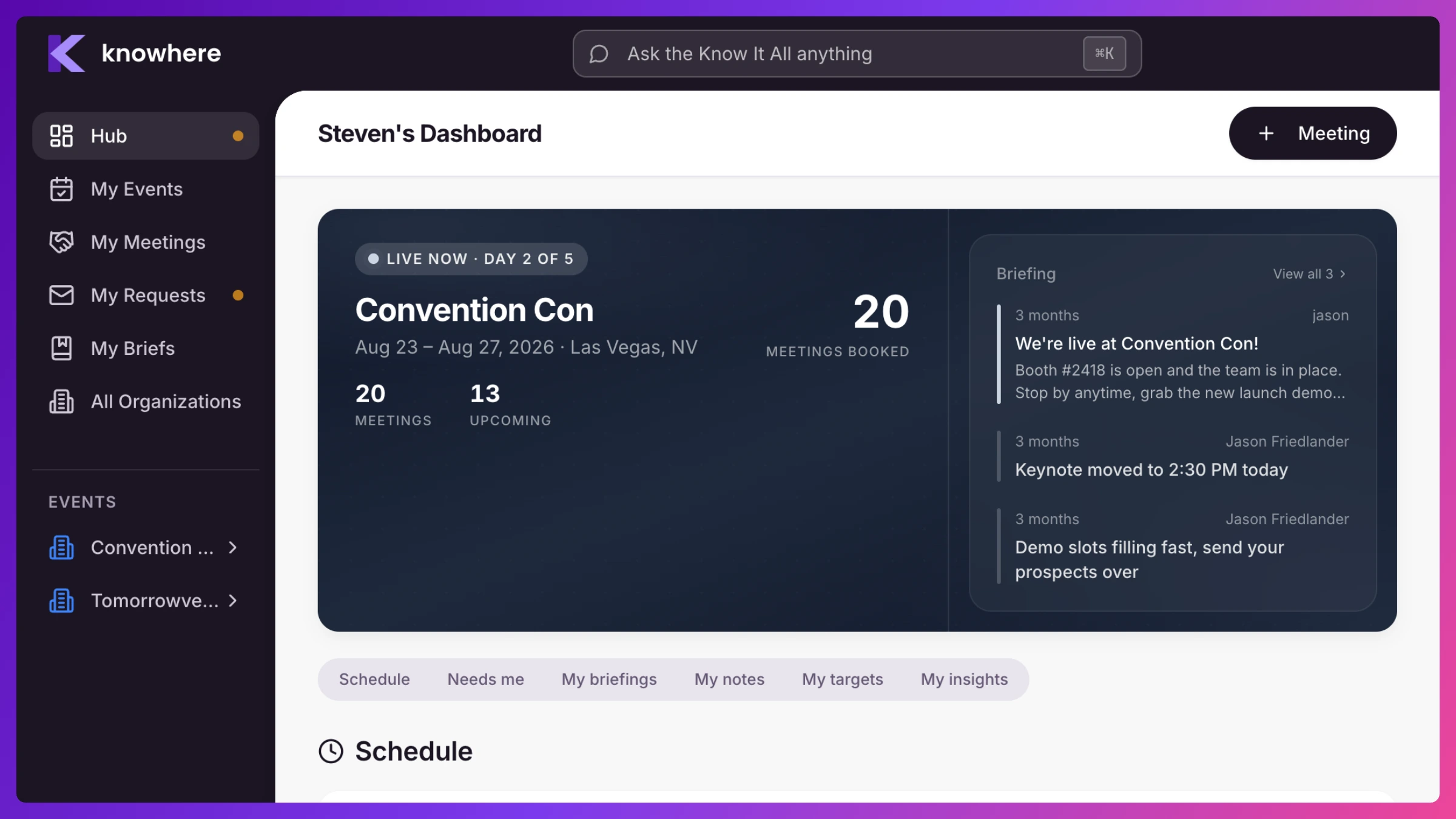
- Your shows: Every event you’re assigned to is in the show picker in the top bar. Pick one and every page follows it, with the live announcements from your manager and the on-site logistics you actually need (where things are, when doors open, who to call) on your Overview.
- Meetings: Your personal meeting list across all events. Open any meeting to see the time, space, attendees, and notes. Meetings booked for you by a manager, or requested through your personal link, all show up here, updated in real time.
- Check in: A phone-friendly page for checking people in as they arrive. You can also check people in right from the People list in a meeting.
- Availability & Personal Time: Tell Knowhere when you’re not available and nobody can double-book you, not managers, not customers. Block out travel, lunch, and breaks as Personal Time so your schedule reflects reality, not wishful thinking.
- Your personal booking link: Every team member gets a personal public page where customers can request time with you directly. Drop it in your email signature or your outreach before the event. Requests come in, your manager (or you) approves, and the meeting lands on both calendars.
- Your accounts: In Organizations, the targets assigned to you, their coverage status, and their published Briefs, so you know who to prioritize and what to say when you sit down with them.
- Follow-ups: The follow-ups from your meetings, plus anything flagged that needs an explanation, show up in your Overview inbox so nothing slips.
For your customers (no login needed)
Section titled “For your customers (no login needed)”The people you meet with never need a Knowhere account. They interact with three simple surfaces:
- Public booking pages: Share an event booking link, or embed it on your website, and customers pick a time and submit a request in under a minute. Each team member also has a personal booking page for direct asks. If the event has demo stations, visitors can also book a demo directly. Pick a demo, grab a fixed-length slot, and (if you allow it) get instantly confirmed with no approval step.
- Calendar invites & RSVP: Confirmed meetings arrive as real calendar invites in the customer’s inbox, with one-click Accept, Maybe, and Decline buttons. Answering from their own calendar app works too. From the same link they can request a different time or take themselves off the meeting. Every response lands in the meeting owner’s email and the event’s Recent Activity feed.
- The on-site kiosk: A self-service screen at your booth. Attendees check in to their meeting by picking their name (or entering a check-in code). New visitors register as walk-ins or request a meeting on the spot.
Know It All, your AI event search
Section titled “Know It All, your AI event search”Know It All is the fastest way to get anything out of Knowhere. Instead of clicking through screens, just ask in plain English, right inside the app.
- “Who’s free Tuesday at 2pm?”
- “Which targets don’t have a meeting yet?”
- “Is there an open Space tomorrow morning?”
- “What’s on Sarah’s agenda for day two?”
- “Any conflicts on Thursday?”
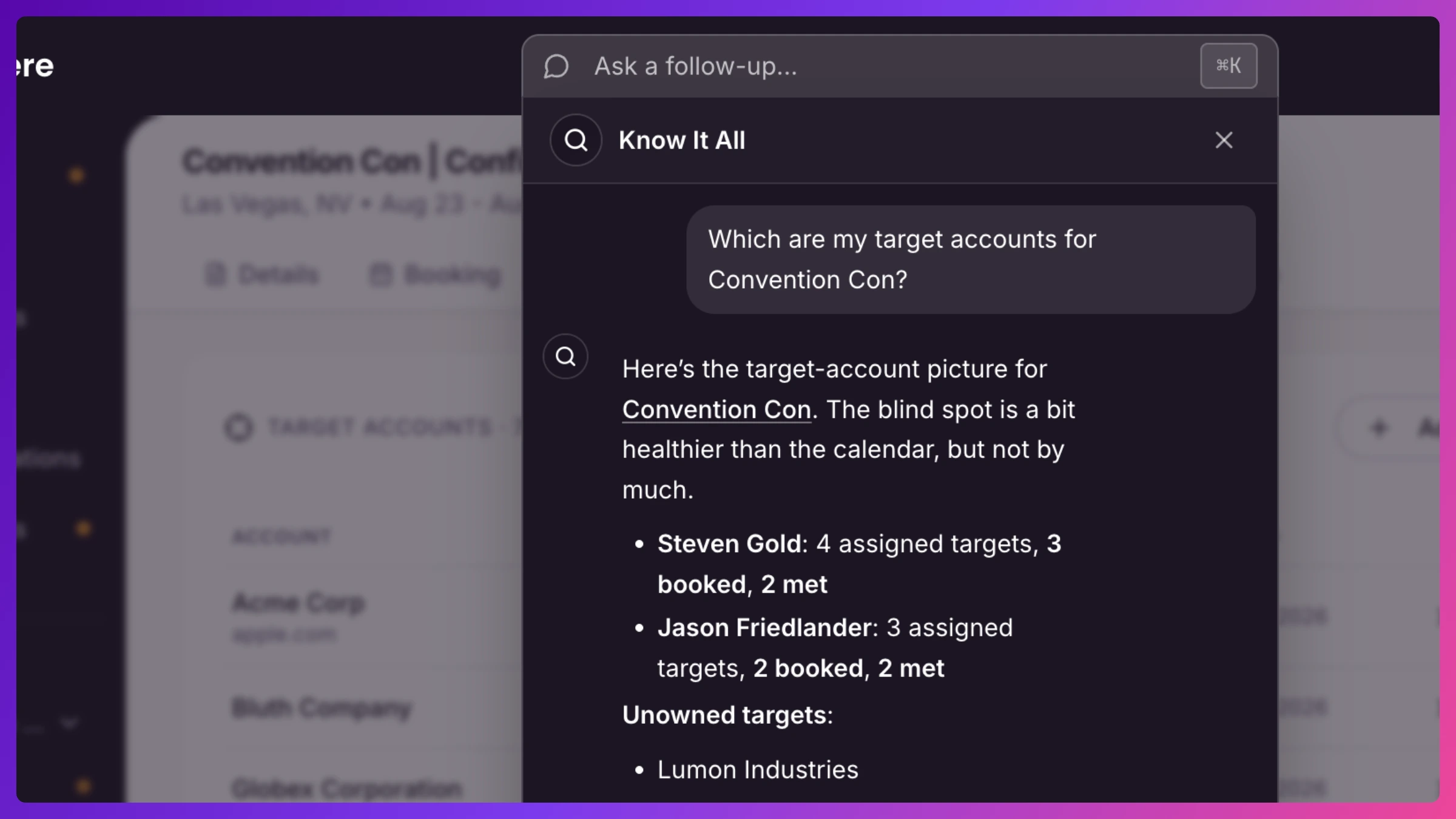
Know It All can search across your meetings, events, people, spaces, and accounts, spot conflicts, find free time, check target coverage, and pull up an account’s briefing and history. Every answer links straight to the relevant screen in the app. The event manager stops being the human search engine.
Know It All respects roles. Managers can ask about anything in the company, while team members get answers about their own schedule and accounts.
Know It All never books behind your back. When you ask it to set up or change a meeting, it pre-fills the booking form and hands it to you. You review and hit save. You’re always the one who confirms.
Works with the calendar you already use
Section titled “Works with the calendar you already use”Knowhere doesn’t ask your team (or your customers) to live in a second calendar. It meets everyone where they already are.
Invites out. When a meeting is confirmed, attendees get a standard calendar invite by email that works with Google Calendar, Outlook, and Apple Calendar. Reschedule or cancel in Knowhere and their calendars update automatically.
Busy time in. Some meetings live outside Knowhere, an internal sync, a dinner, a flight. Forward the calendar invite to add@cal.goknowhere.com. An invite that lands inside one of your events shows up there as a read-only imported meeting, visible to everyone planning around you. Anything else becomes a busy block on your availability, so conflict detection keeps the slot protected, and an invite Knowhere can’t place waits in Imports to review, surfaced as a row in Requests. If the outside meeting is cancelled later, forwarding the cancellation frees the slot again.
How it all connects
Section titled “How it all connects”Knowhere is built around the arc of an event. Every feature exists to serve one of three phases.
Before, build the plan. A manager creates the event, spaces, team, hours. Targets are loaded and Briefs drafted. Booking links go out. Requests start arriving. Team members set their availability, and approved requests become meetings.
During, run the day. The live schedule with conflict detection keeps everyone honest. The kiosk checks attendees in. Walk-ins are captured, not lost. Announcements and logistics reach every team member in real time, and Know It All answers who, where, and when instantly.
After, know what it was worth. Attendance is recorded, check-ins, no-shows, walk-ins. Meeting notes and summaries capture outcomes. Costs against attributed revenue show the event’s ROI, and account history rolls into the next event’s Briefs.
The thread running through all of it is one meeting record, seen from every angle. The meeting a manager books appears on the show’s schedule, in the team member’s Meetings, in the customer’s calendar, at the check-in kiosk, on the account’s engagement history, and in Know It All’s answers. Change it once, and everyone’s view updates in real time.
Your data stays yours. Every company’s data is isolated from every other company’s, enforced at the database layer. Your events, meetings, and accounts are visible only to members of your company, scoped by their role.
Glossary
Section titled “Glossary”| Term | Meaning |
|---|---|
| Event | A conference, trade show, or summit your company attends, the container for spaces, team, and meetings. |
| Space | A meeting location within an event: a booth room, a suite, or a virtual room. |
| Demo station | A Space marked bookable on the public page. Visitors book fixed-length demo slots directly. Bookings auto-confirm or queue for approval, your choice. |
| Owner | The team member responsible for an organization, company-wide. Drives coverage tracking and Brief access. |
| Announcement | A short update a manager posts to an event. It appears live on every staffed team member’s day-of briefing. |
| Logistics card | A day-of detail (badge pickup, wifi, booth, parking, hotel, transportation, schedule, collateral) a manager adds to an event’s briefing for the team. |
| ROI | An event’s gross return, attributed revenue divided by total cost, alongside cost per meeting, account, and team member. |
| Meeting | A scheduled session with a time, space, team attendees, customer attendees, and notes. |
| Hold | A meeting status that reserves the slot without telling anyone. A held meeting takes the Space and the team member’s time, and keeps the slot off their personal booking page, but sends no invites until it’s confirmed. |
| Imported meeting | A read-only meeting created from an email invite you forwarded to Knowhere. It blocks the time on your schedule but sends no invites of its own. |
| Request | An inbound ask for meeting time, awaiting manager approval. Comes from booking pages, personal links, or the kiosk. |
| Reschedule request | A guest’s proposal of a new time, made from their RSVP page. The meeting stays where it is until a manager approves the new time. |
| Organization | A customer company you meet with. Holds its contacts and meeting history. |
| Target | An organization you’ve flagged as a priority, with a tier (Tier 1 highest). Knowhere tracks whether it gets meeting coverage at each event. |
| Brief | A per-account prep document for an event: objectives, talking points, deal context, and history. |
| Sales Inference | The manager’s view of what the meetings produced: exec coverage of Tier 1 targets, substance rate, follow-ups, and seniority balance. |
| Recap | The short post-meeting questionnaire your team answers on a meeting once it’s past or checked in. Managers define the questions; submitted answers post into the meeting’s notes. |
| Substance grade | The grade a meeting’s notes earn automatically on save, once the meeting has ended: Concrete, Directional, or Fluff. A meeting with no notes shows No summary instead. |
| Commitment | A follow-up item pulled from meeting notes, with an owner and a due date. The app also calls these follow-ups. |
| Earmark | A flagged risk moment on a meeting’s customer side, an exec who cancelled, no-showed, got swapped for someone junior, or walked up unannounced. Stays open until resolved with a note. |
| Persona | A contact’s seniority (C-level, VP, Director, IC) and function, inferred from their job title or set manually. Knowhere never guesses an unknown. |
| Executive level | The company setting (default VP) for who counts as an executive in engagement metrics. |
| Personal Time | A non-meeting block on a team member’s schedule (travel, lunch, break) that protects the slot from booking. |
| Check-in | Recording that an attendee actually showed up, usually via the kiosk. |
| Walk-in | An attendee who arrives without being on the meeting’s expected list. |
| No-show | An expected attendee who didn’t attend, captured in the meeting’s attendance summary. |
| RSVP | A guest’s response to a calendar invite: Accept, Maybe, or Decline, from the invite’s buttons, the manage page, or their own calendar app. |
| Know It All | Knowhere’s built-in AI event search. Ask it anything about your schedule, people, spaces, or accounts. |
| Overview | The manager’s home screen: today’s meetings, recent activity, and anything that needs your attention. |
| Recent Activity | The live feed on Overview: RSVP changes, requests, notes, and check-ins, each linking to the meeting behind it. |
| Overview (team member) | The team member’s home screen: their agenda and action items. |
| Manager | A role that sees and manages everything in the company: events, meetings, requests, accounts, team, and billing. |
| Team member | A role scoped to its own schedule, availability, booking link, and assigned accounts. |