How to add Personal Time
Personal Time blocks the parts of your day that aren’t customer meetings, travel, lunch, breaks, so scheduling steers around them and nobody books you then. Team members block their own. Managers can block time for others.
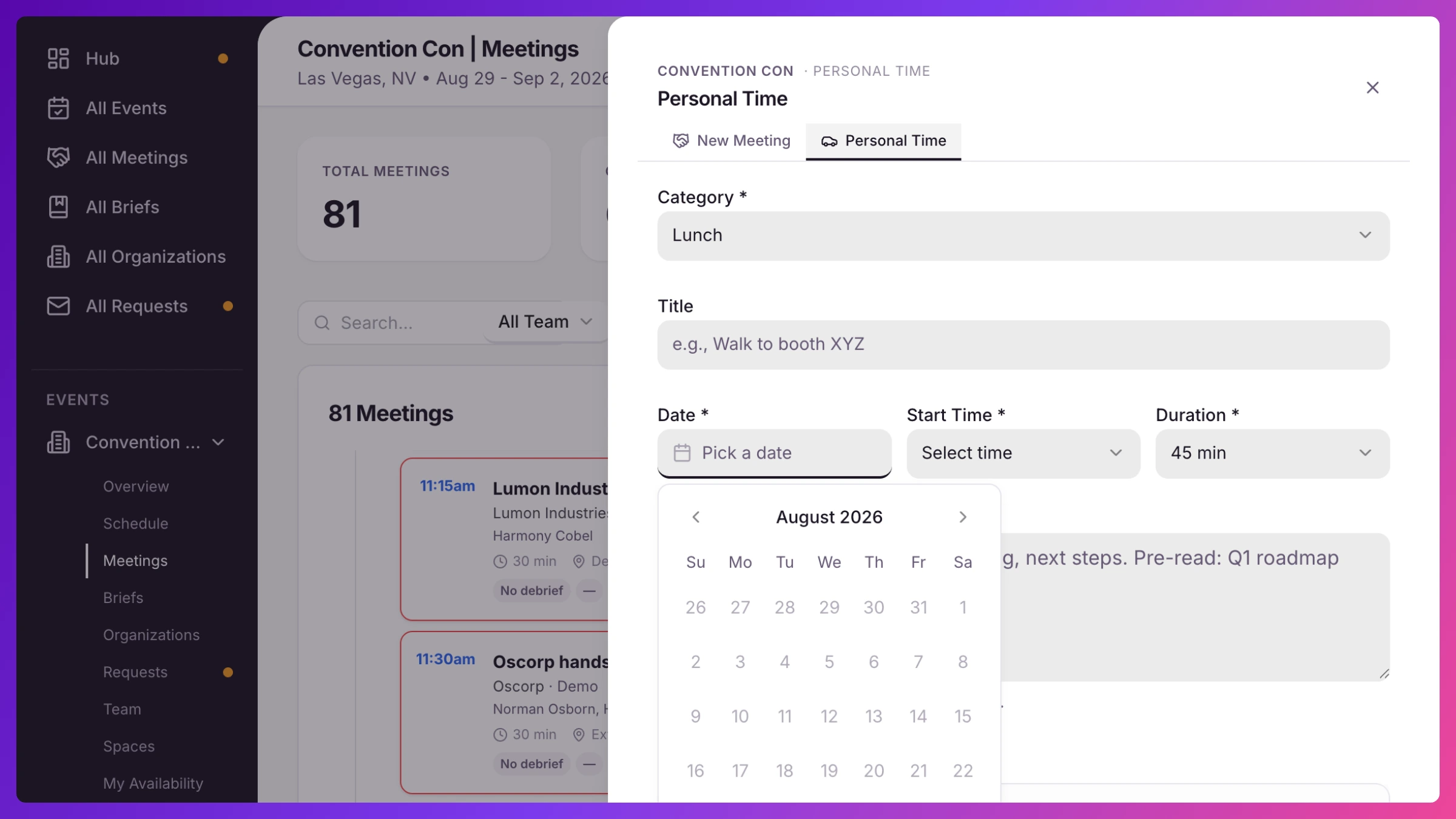
- From an event, click the Meeting button (on the Overview, Schedule, or Meetings screen) to open the panel.
- At the top, switch to the Personal Time tab.
- Pick a Category: Travel, Lunch, Break, or Other. If you choose Other, a Custom Label field appears (for example “Doctor visit”).
- Set the Date, Start Time, and Duration.
- If you’re a manager, use the Internal list to choose whose time this blocks. If you’re a team member, it’s automatically your own time.
- Click Create Meeting.
Good to know
Section titled “Good to know”Personal Time shows on the schedule and marks the person busy, so meetings and public booking both skip it. It doesn’t repeat across days, add a separate block for each day you need. More on how scheduling uses it in Conflict detection & availability.