How to use the kiosk
The kiosk is the self-service screen at your booth. This is the attendee’s side, what someone does when they walk up. No login. (Managers set it up first with Launch the check-in kiosk.)
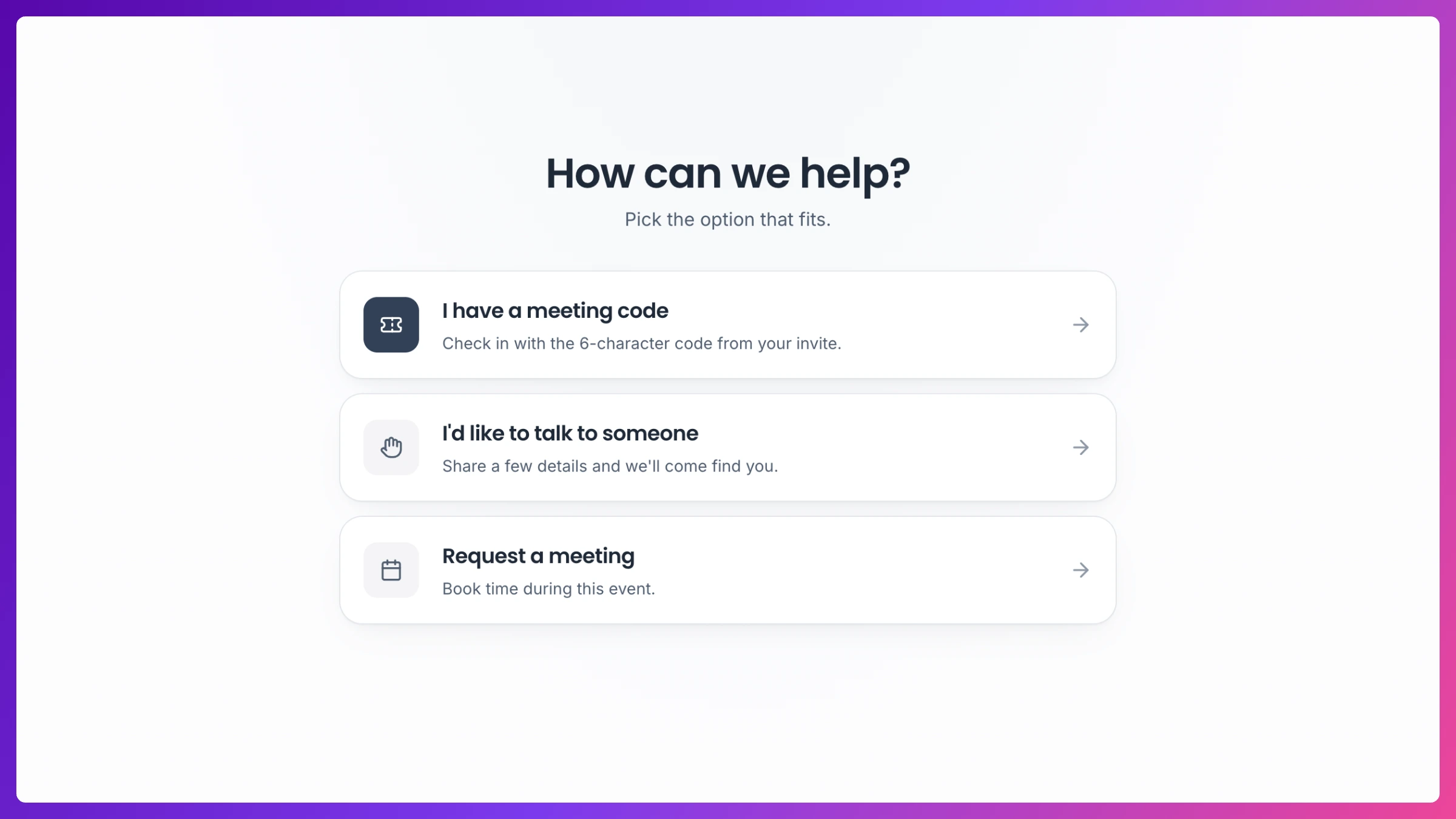
The landing screen
Section titled “The landing screen”The attendee taps one of up to three choices:
- Check in (the button uses your custom label, for example “I have a code”).
- I’d like to talk to someone, for a walk-up with no meeting booked.
- Request a meeting, to book time during the event.
The last two appear when the manager has turned them on.
Check in
Section titled “Check in”- Tap the check-in button.
- On Enter your check-in code, type the six characters from your calendar invite, then tap Find my meeting.
- On the meeting that comes up, tap your name in the list (“Tap your name to check in”). Not your meeting? Tap Wrong meeting · enter a different code.
- On Confirm it’s you, tap Yes, check me in. A success message confirms it, and the kiosk resets for the next person.
Talk to someone (walk-in)
Section titled “Talk to someone (walk-in)”- Tap I’d like to talk to someone.
- Fill in Name, Email, Company, and Title.
- Tap Let them know I’m here. The visitor now shows up in the manager’s live walk-up queue.
Request a meeting
Section titled “Request a meeting”- Tap Request a meeting.
- Fill in your details, then pick a date and time.
- Tap Send request. It lands in the event’s request queue for a manager to confirm.
What’s next
Section titled “What’s next”Check-ins and walk-ins feed the manager’s live queue and the event’s attendance record. See Check-in & the kiosk.