Meeting notes & Summary
Two related tools capture what happened in a meeting: notes (typed by your team) and Summary (an AI-written overview of those notes). Together they turn hallway conversations into an account record your whole company can use.
Meeting notes
Section titled “Meeting notes”Who it’s for: Anyone attending the meeting. Managers can add notes to any meeting. Team members can add notes to meetings they’re on.
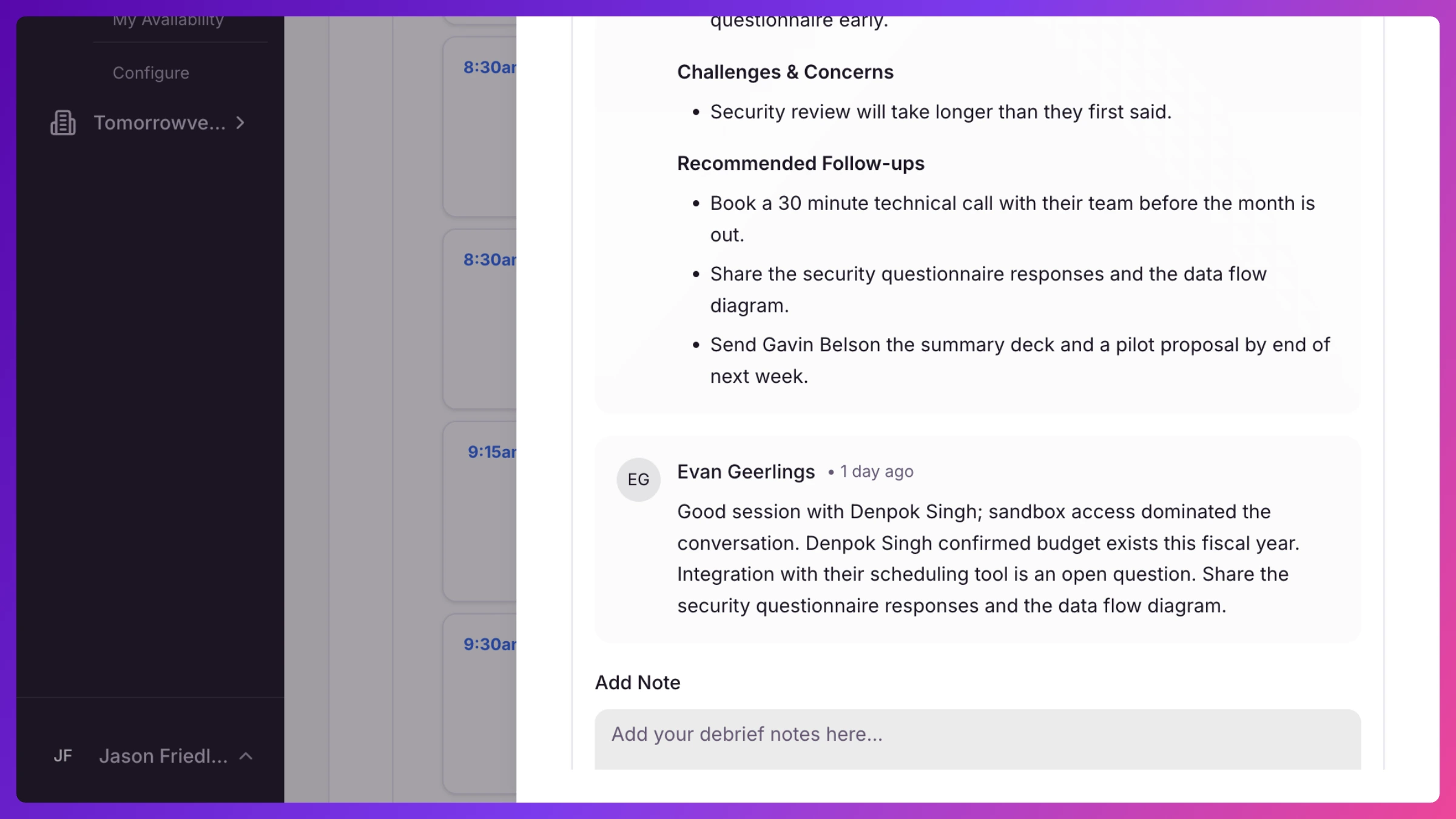
Open any meeting and use the Notes section to jot down what happened: commitments made, objections raised, follow-ups owed. Each note is timestamped and attributed. A note’s author (or any manager) can edit or delete it later.
@Mentions: type @ and a teammate’s name in a note and they’re notified by email, so ”…@Sarah owes them pricing by Friday” actually reaches Sarah.
Structured capture: the Recap Business & up adds your company’s own post-meeting questions to each meeting once it has ended or checked in. Submitted Recap answers land right here in the notes feed, and count as notes everywhere notes are counted.
Where notes show up
Section titled “Where notes show up”Notes don’t stay buried in the meeting. They also appear in:
- History: every note logs an entry so managers see summary activity as it happens.
- Overview: the recent History surfaces the latest notes across the show, for managers and team members alike.
- The account’s history: open any organization or contact and their meeting notes are right there, across every event.
- Briefs: the account’s Brief pulls recent meeting notes into its notes timeline, so next event’s prep includes this event’s outcomes.
What happens when you save a note Business & up
Section titled “What happens when you save a note Business & up”Saving a note does more than store it. Once the meeting has ended, Knowhere reads the notes and pulls out the facts that matter: commitments made (with owner and due date), whether a next meeting was booked, budget and timeline mentions, named decision-makers, risks and objections. From those facts the meeting earns a substance grade, Concrete, Directional, or Fluff, by a fixed rule the AI never bends: the AI extracts, it doesn’t judge. No button, no waiting; the grade and any follow-ups appear on the meeting on their own, and re-saving unchanged notes changes nothing.
A meeting with no notes is never graded. It shows No summary, which is a nudge, not a verdict.
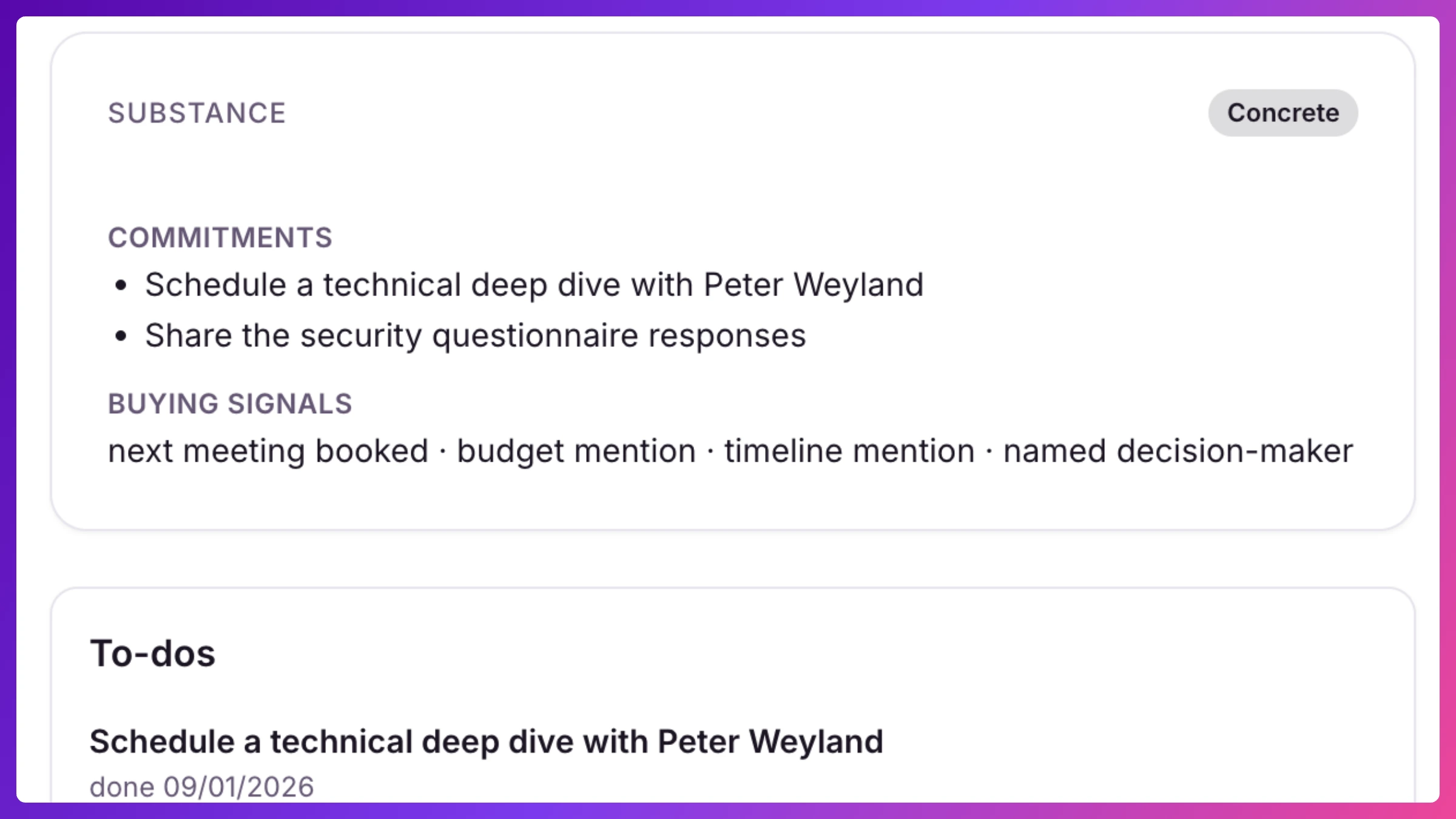
The extracted commitments and grades roll up into the event’s Sales Inference zone, where managers see substance rate, follow-ups, and each team member’s open follow-ups.
Summary Business & up
Section titled “Summary Business & up”Who it’s for: Managers, on Business and Enterprise plans.
The automatic grading above works from facts. When you want prose, there’s the manual path: once a meeting has at least one note, a Generate Summary button appears in its Notes section. The Summary reads all of the meeting’s notes and produces a structured write-up:
- Key Wins
- Key Points
- Challenges & Concerns
- Recommended Follow-ups
The Summary is written from your team’s point of view and built to be actionable: copy it to your clipboard with one click and paste it into your CRM, a follow-up email, or a pipeline review. Generating again replaces the previous version with a fresh summary of the current notes. Saving a generated Summary is a manager action.
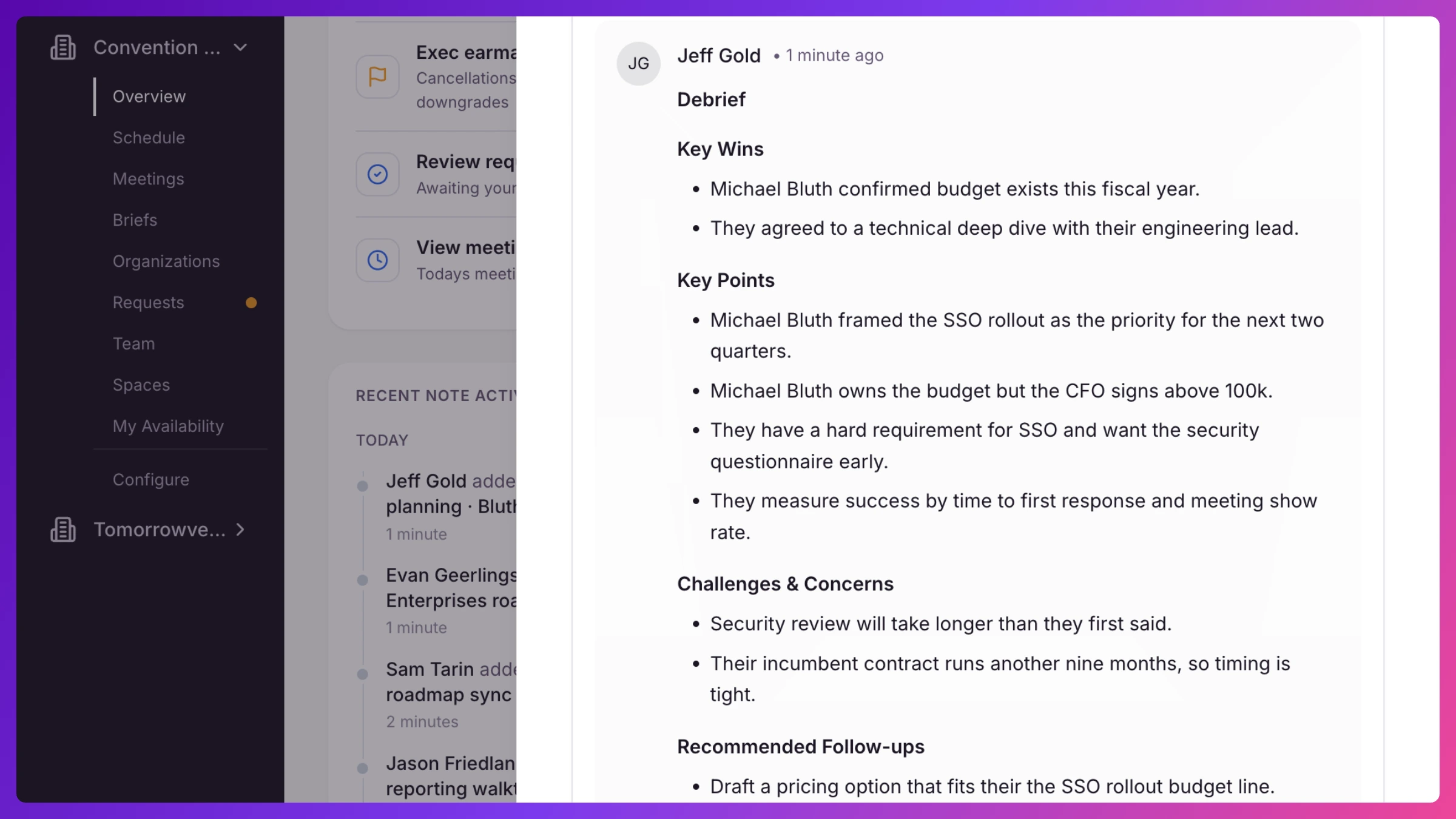
The Summary appears alongside the meeting’s notes, in the recent History on Overview, and in the account’s history.
Closing out an event
Section titled “Closing out an event”The Follow-ups tab of your Overview inbox, and the Follow-ups tab in Signals, track the loose ends after the last handshake, including meetings that still need a Summary and no-shows to follow up on, so nothing your team learned at the event evaporates on the flight home. The commitments your notes produced live on past the event too: they stay open in Sales Inference’s ledger until someone marks them done.
Notes vs. Summary: notes are the raw material your team types during and after meetings. The Summary is the AI-written synthesis of them. You need the first to generate the second.
How to
Section titled “How to”Step-by-step, with the exact clicks: